
This article explains how the integration works between Erplain and QuickBooks Online. You can find more details and instructions for each section on this page. Please note that you will need QuickBooks Online Plus to sync your products and inventory.

Products and prices
After connecting QuickBooks with Erplain, you will be able to import the products created in QuickBooks to your Erplain account or export the products created in Erplain to QuickBooks.
Once your products are in both software, every change made on Erplain will automatically update QuickBooks and vice versa.
Please note that there is no need to convert your products to Non-Inventory items.
You can also sync your prices from Erplain to QuickBooks, using any of your created sales and purchase prices.
Click here to see more details and instructions on the Product sync.
Inventory
By default, the inventory sync works both ways. However, you can turn off the automatic inventory sync from QuickBooks to Erplain (optionnal). For more details, please check the article Inventory sync.
Within Erplain, your On-Hand inventory is updated every time you create any of the following transactions:
- Shipping Orders (from Sales Orders)
- Invoices (direct Invoices, not from Sales Orders)
- Product returns
- Stock entries
- Stock removals
- Purchase Deliveries (from Purchase Orders)
Erplain will sync your On-Hand inventory with QuickBooks for all these transactions except for Shipping Orders. Shipping Orders are created from Sales Orders, and are not supported by QuickBooks Online.
From the time you create the Shipping Order in Erplain to when you create the Invoice from the Sales Order or Shipping Order, you will notice a temporary difference between Erplain and QuickBooks.
Click here to see more details about the Inventory update workflow.

Locations
You can setup multiple stock locations in Erplain to track your inventory, sales and purchases in each location.
You can select a default location that will be used to sync the inventory when adjustments are coming from QuickBooks.
There is also the option to create new locations in Erplain based on your QuickBooks locations. Existing locations can also be mapped to their QuickBooks counterpart.

Customers and Suppliers
You can import your Customers and Suppliers from QuickBooks to Erplain. Once imported, they will sync both ways between the two software.
It is recommended to create your new contacts from Erplain as they will be sent automatically to QuickBooks when you create Invoices and Purchases with them. If you create new contacts in QuickBooks, you can always re-import them to Erplain. It will only send the new contacts.
Click here to see more details and instructions on the contacts sync.

Invoices, Credit notes, Refunds
All Invoices created in Erplain can be sent to QuickBooks. Note that this is not a journal entry, it is the same invoice that is created in QuickBooks, along with the customer information and products.
Same for Deposits, Credit notes and Refunds.
You can choose to send these invoices automatically by checking the following option in the settings:
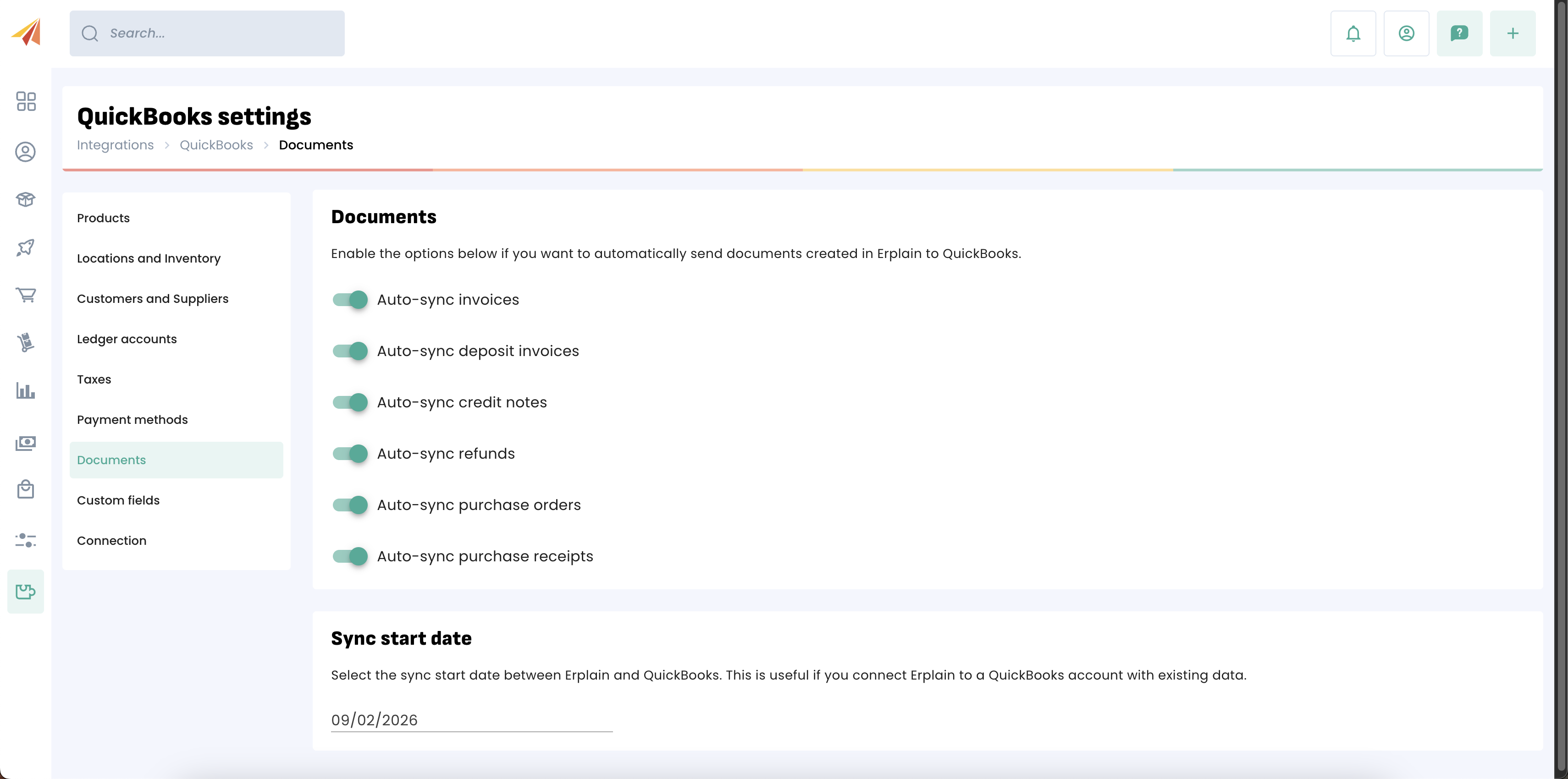
If you create an Invoice in QuickBooks, this Invoice will not be created in Erplain but QuickBooks will send an Inventory adjustment to Erplain to keep your Inventory in sync between the 2 systems.
Click here to see more details and instructions on the Invoice sync.

Payments
Payments can be added from Erplain or QuickBooks. Payments received in QuickBooks will reflect in Erplain. If you add a payment directly in Erplain, it will also reflect in QuickBooks.
As a consequence, you will be able to follow up on your invoice's status: Paid, Unpaid, Partially paid from Erplain.
Additional information is available in the article about about Payment sync and Payment method mapping.
To avoid inconsistencies, do not to use both platforms to make partial payments on the same invoice.

Purchase Orders, Bill of expense
All Purchase Orders created in Erplain can be sent to QuickBooks. Note that this is not a journal entry, it is the same Purchase Order that is created in QuickBooks, along with the supplier information and products.
If you create a Purchase Order in QuickBooks, it will not be created in Erplain but QuickBooks will send an Inventory adjustment to Erplain to keep your Inventory in sync between the 2 systems.
When you receive the products, click on 'Receive products', and a bill of expense will be created on QuickBooks.
You can find more information about Purchase Orders and Deliveries in this article.

Cost
Erplain allows you to choose how the valuation of the products is calculated, between MAC, FIFO and LIFO.
Click here to see more details and instructions on the Cost calculation.
Important
- Please note that you need a QuickBooks Online Plus or Advanced account to sync products, invoices and purchase orders from Erplain to QuickBooks.
- You can sync only one Erplain account per QuickBooks account and vice versa.
- Merging customers is not possible when using Erplain and QuickBooks. We do not recommend you to merge customer from QuickBooks as this would cause issues on your Erplain account.
Was this article helpful?
That’s Great!
Thank you for your feedback
Sorry! We couldn't be helpful
Thank you for your feedback
Feedback sent
We appreciate your effort and will try to fix the article