Once you connect Erplain with QuickBooks, all invoices created from Erplain will be created in QuickBooks just like if you had created them directly in QuickBooks.
You can choose to send these invoices automatically by checking the following option in the integration settings.
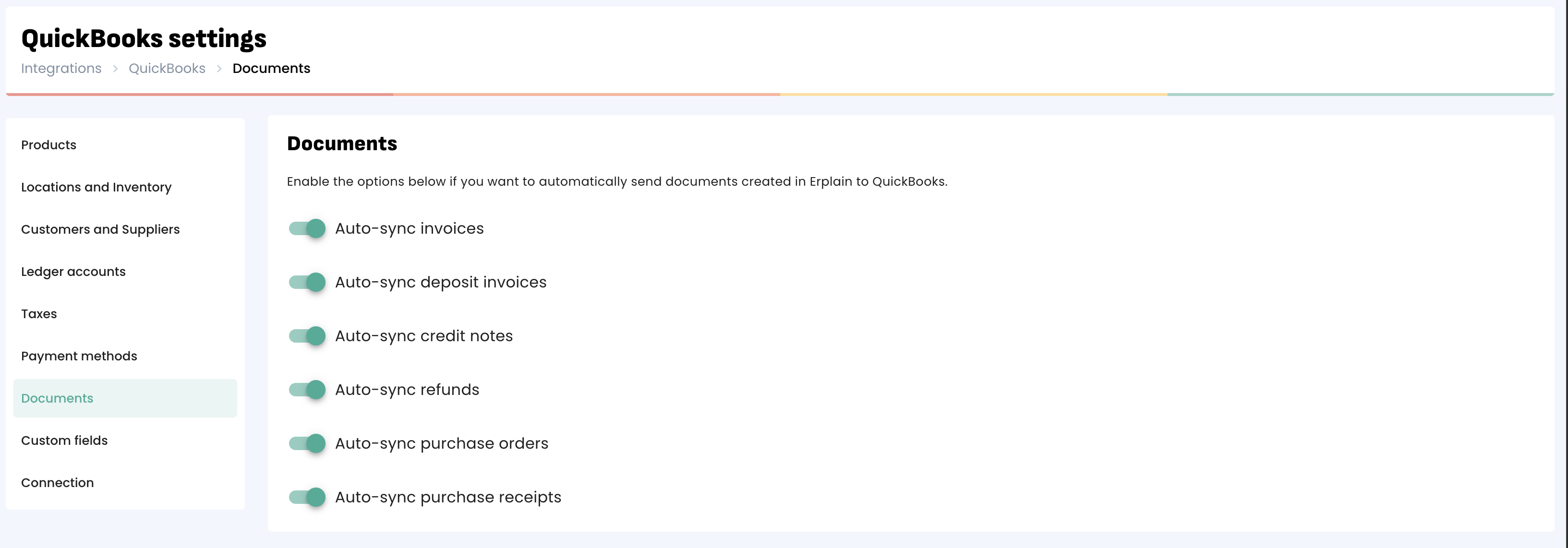
If this option is not enabled, you will see a 'Sync to QuickBooks' button in the invoice to send the invoice to QuickBooks:
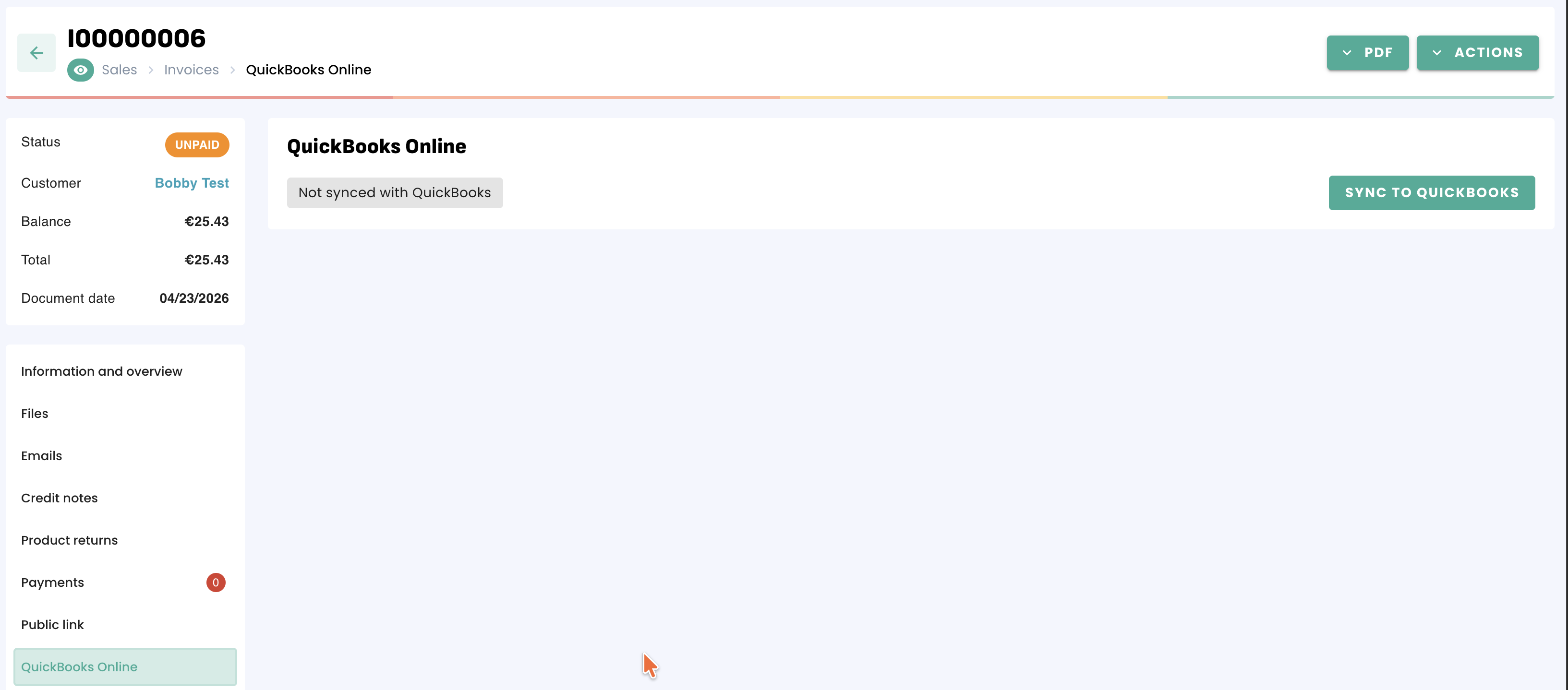
If you have enabled the option to send automatically and still see the button, this means that QuickBooks rejected the invoice. You can click on the button, you will see the related error message. You can find the list and solutions of QuickBooks error messages on this page.
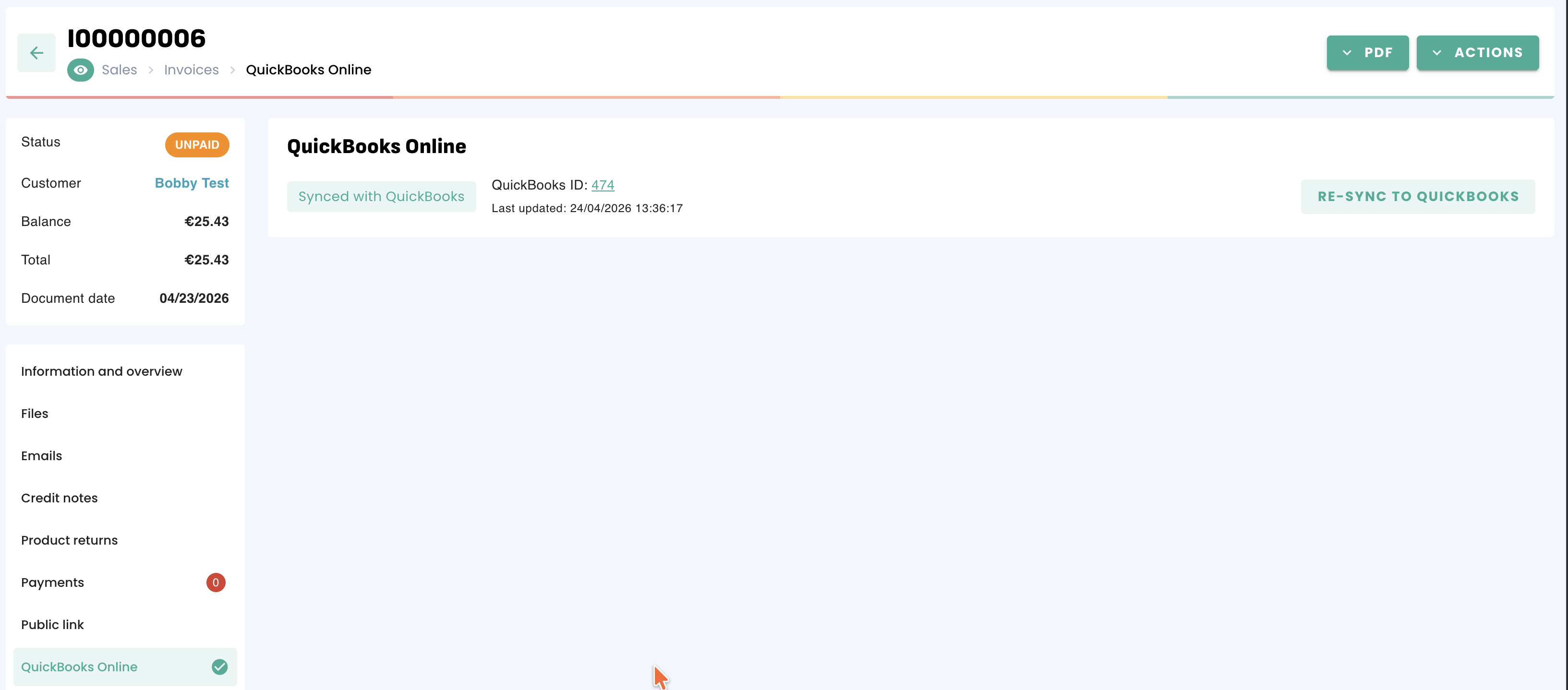
Once the invoice is sent to QuickBooks, you will see the QuickBooks ID. You can click on the ID to open the invoice in QuickBooks.
If you create an Invoice in QuickBooks, this invoice will not be created in Erplain but QuickBooks will send an Inventory adjustment to Erplain to keep your Inventory in sync between the 2 systems (unless the option to block inventory updates from QuickBooks to Erplain is active)
Payments
Payments can be added from Erplain or QuickBooks. Payments received in QuickBooks will reflect in Erplain. If you add a payment directly in Erplain, it will also reflect in QuickBooks.
As a consequence, you will be able to follow up on your invoice's status: Paid, Unpaid, Partially paid from Erplain.
Additional information are available in the article about Payment sync and Payment method mapping.
Cancelling the invoice
Cancelling the invoice in Erplain will void the invoice on QuickBooks. Once an invoice is cancelled, you can't re-activate it.
Updating the invoice
Note that invoices are synchronized only from Erplain to QuickBooks. If you update an invoice in Erplain, it will update the invoice in QuickBooks, but if you update the invoice in QuickBooks it will not be updated in Erplain.
You can find more details on the integration settings in the QuickBooks settings page.
Was this article helpful?
That’s Great!
Thank you for your feedback
Sorry! We couldn't be helpful
Thank you for your feedback
Feedback sent
We appreciate your effort and will try to fix the article