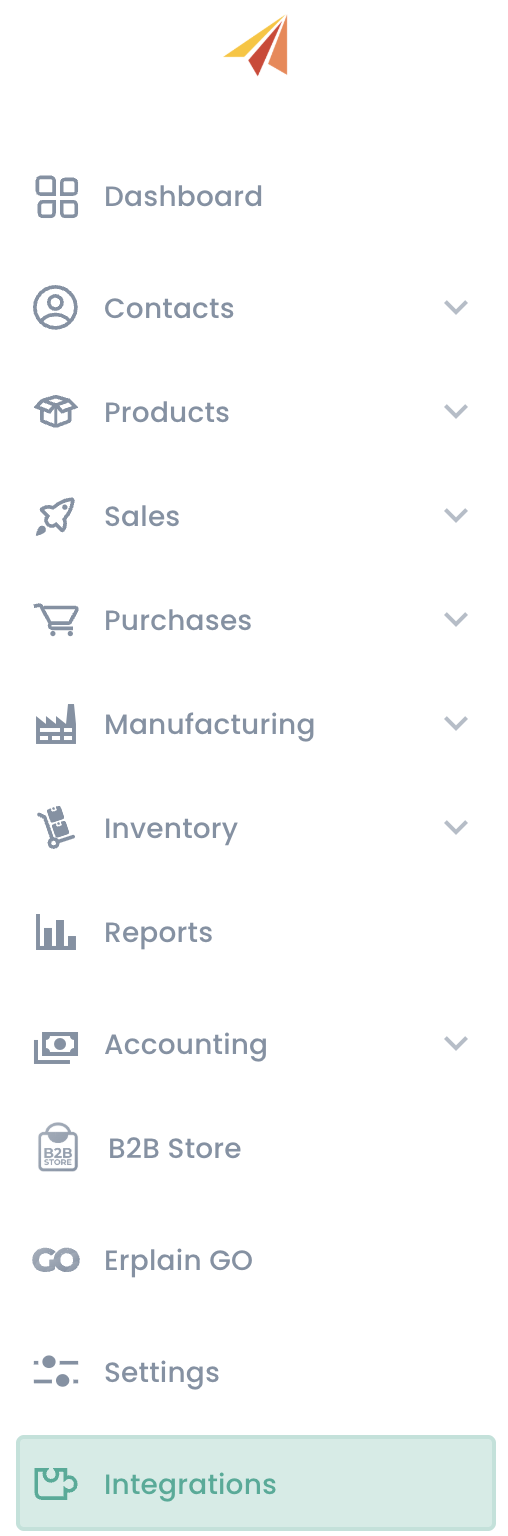
After you have connected Erplain with QuickBooks Online, you can setup the integration depending on your workflow. The QuickBooks settings are available in the 'Integrations' menu.
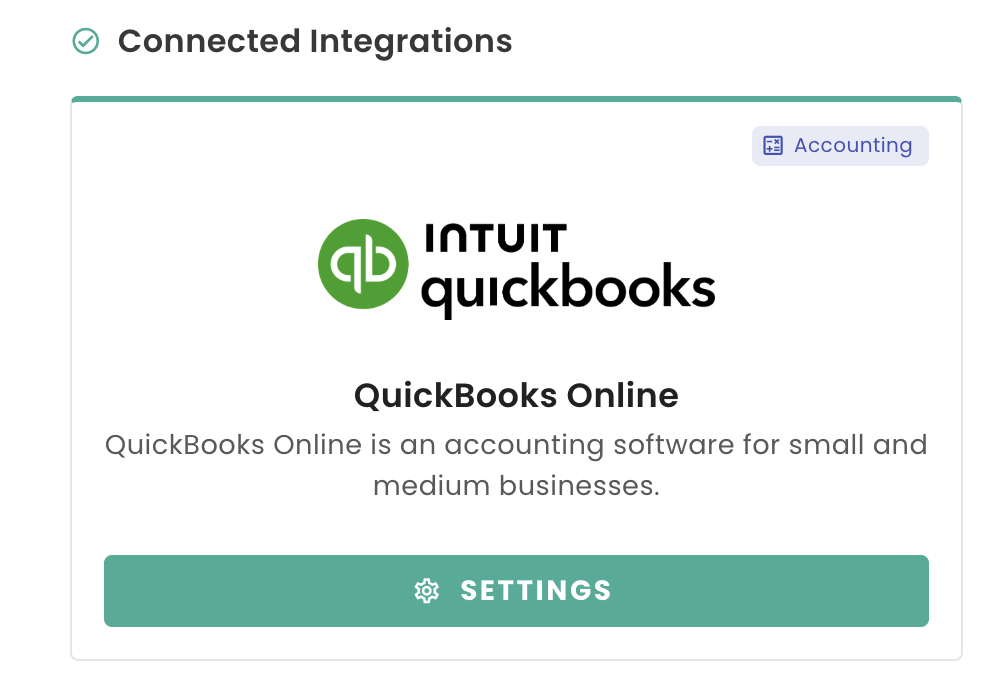
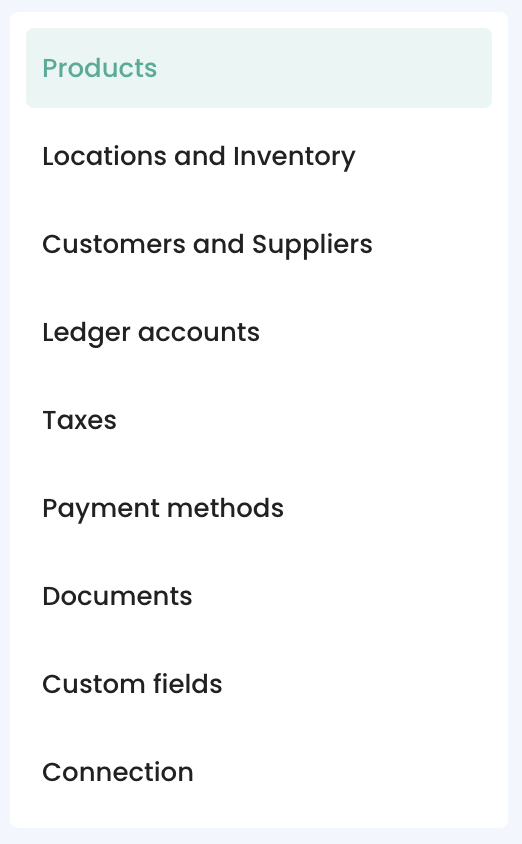
The settings are divided into the following categories, simply click on each section to make your choices:
Products
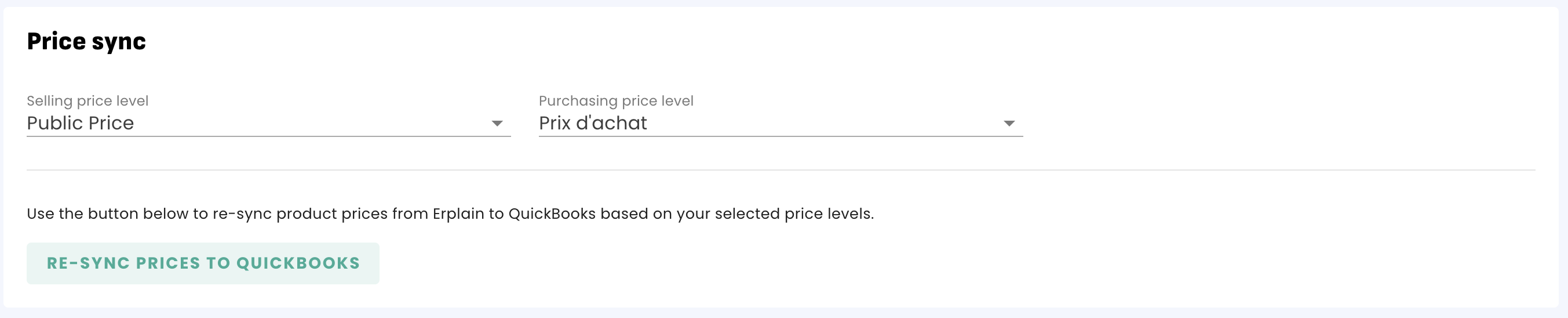
- Price Sync
Erplain supports multiple price levels. Select which price level you would like to sync with QuickBooks:
- Products sync
For Importing, exporting and mapping your products with QuickBooks Online, please refer to this page.
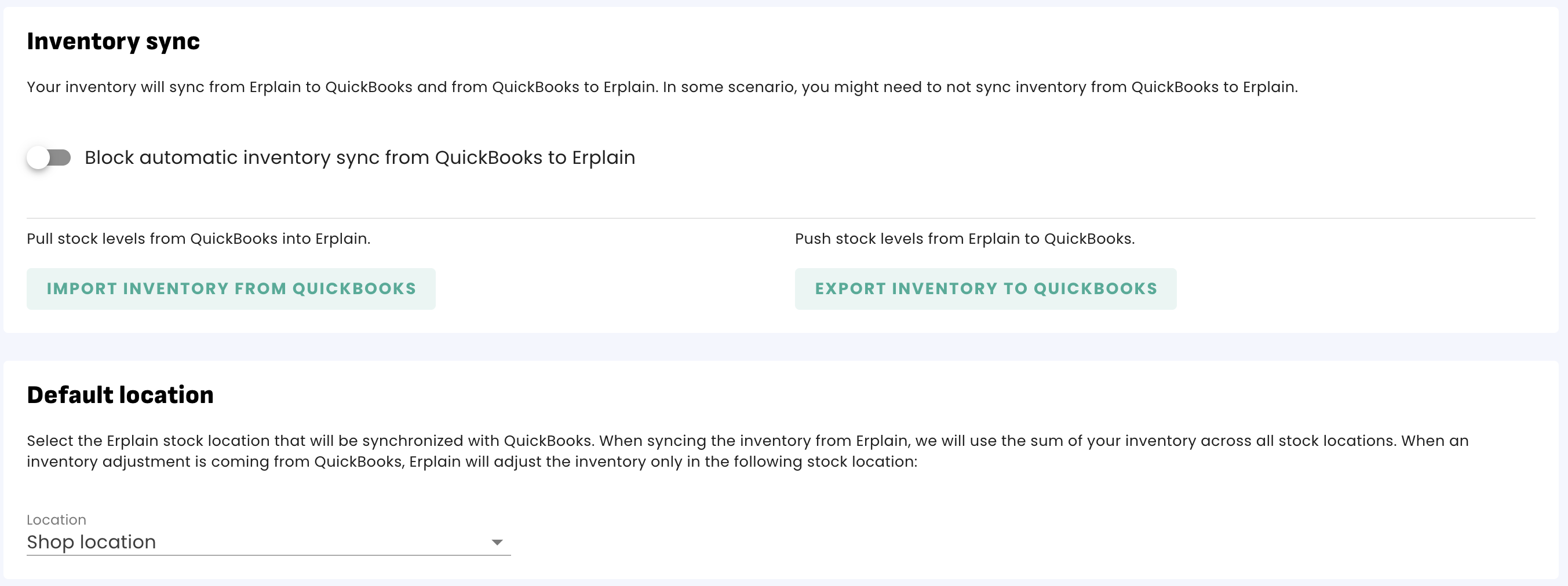
Erplain allows you to manage products in multiple stock locations. When syncing the inventory from Erplain to QuickBooks, we will count the total of your inventory across all stock locations.
When an inventory adjustment is coming from QuickBooks, Erplain will adjust the inventory only in this default stock location:
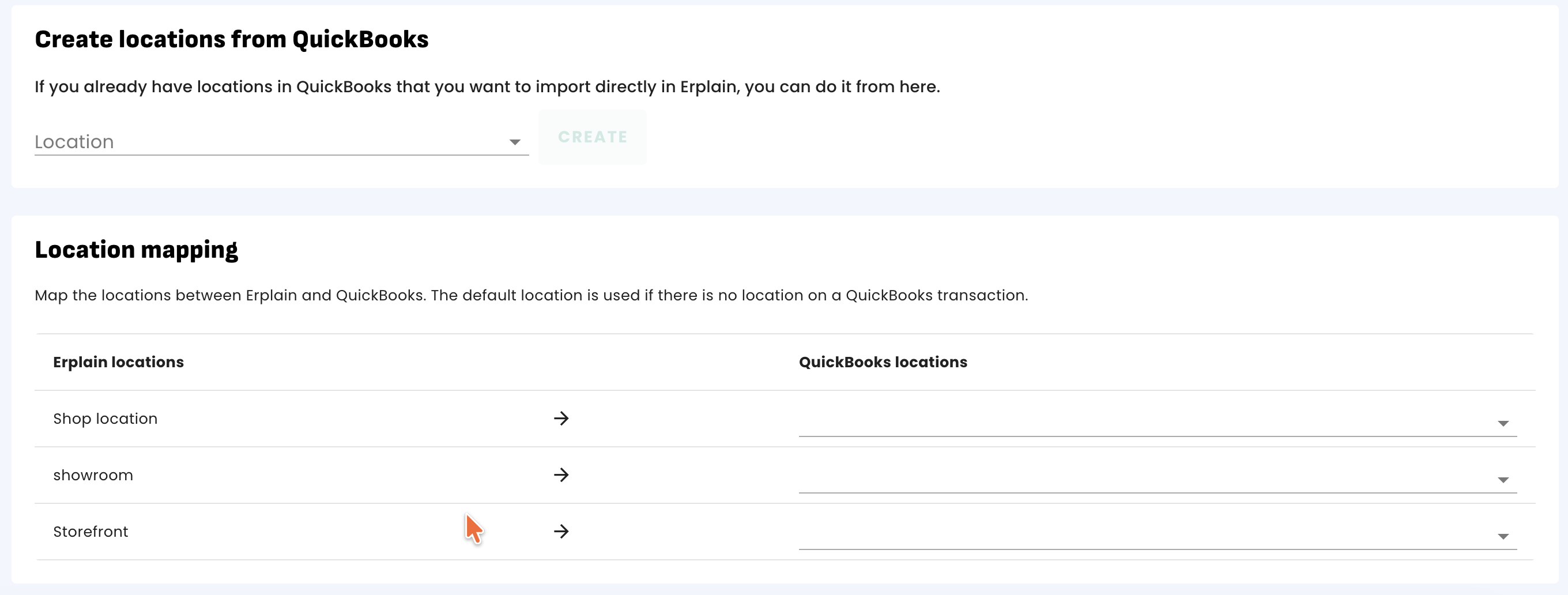
In case you have set up locations in QuickBooks for reporting purposes, you can map your Erplain locations with QuickBooks from the Location tab. You can also use your locations in QuickBooks to create their Erplain counterpart.
Customers & Suppliers
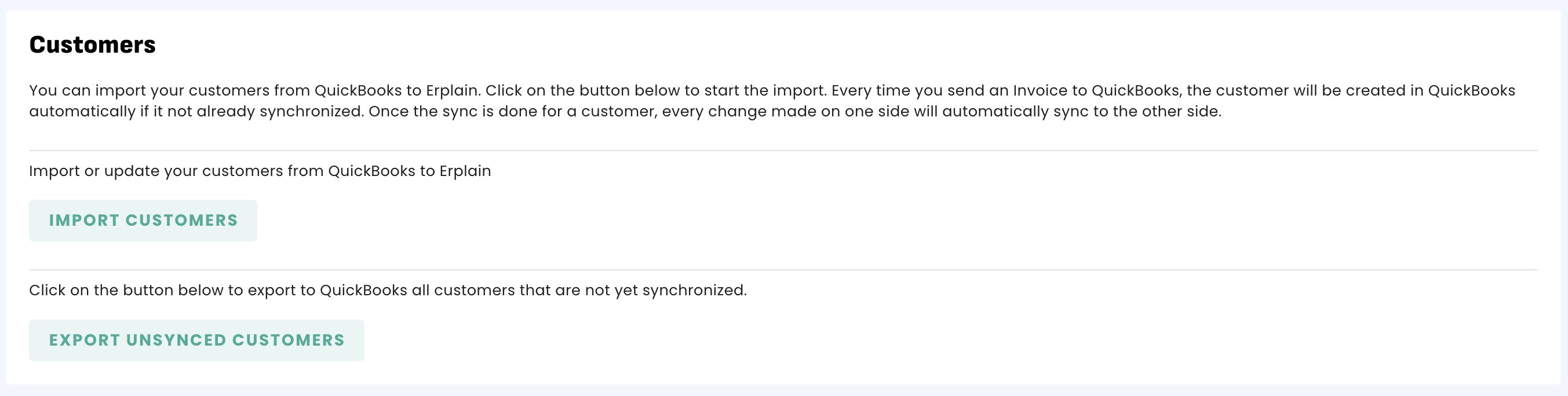
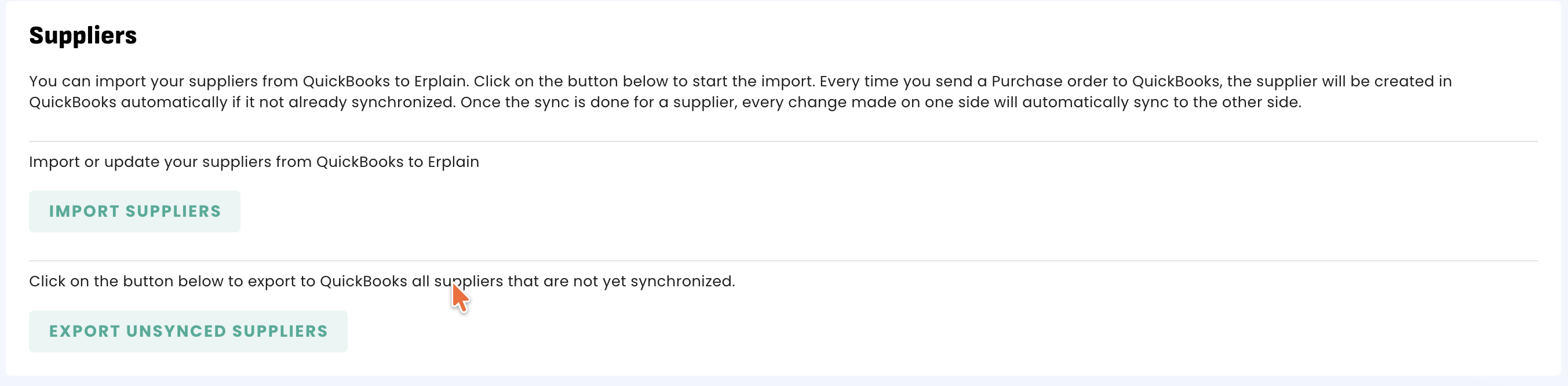
You can import your Customers and Suppliers from QuickBooks to Erplain by clicking on the button below. You can also export your Customers and Suppliers from Erplain to QuickBooks.
Also, every time you send an Invoice or a Purchase Order from Erplain to QuickBooks, the customer or the supplier will be created in QuickBooks automatically if it not already synchronized. Once the sync is done for a customer or a supplier, every change made on one side will automatically sync to the other side.
Ledger accounts mapping
Map your QuickBooks ledger accounts to Erplain. We have assigned default accounts when possible. Please check each one:
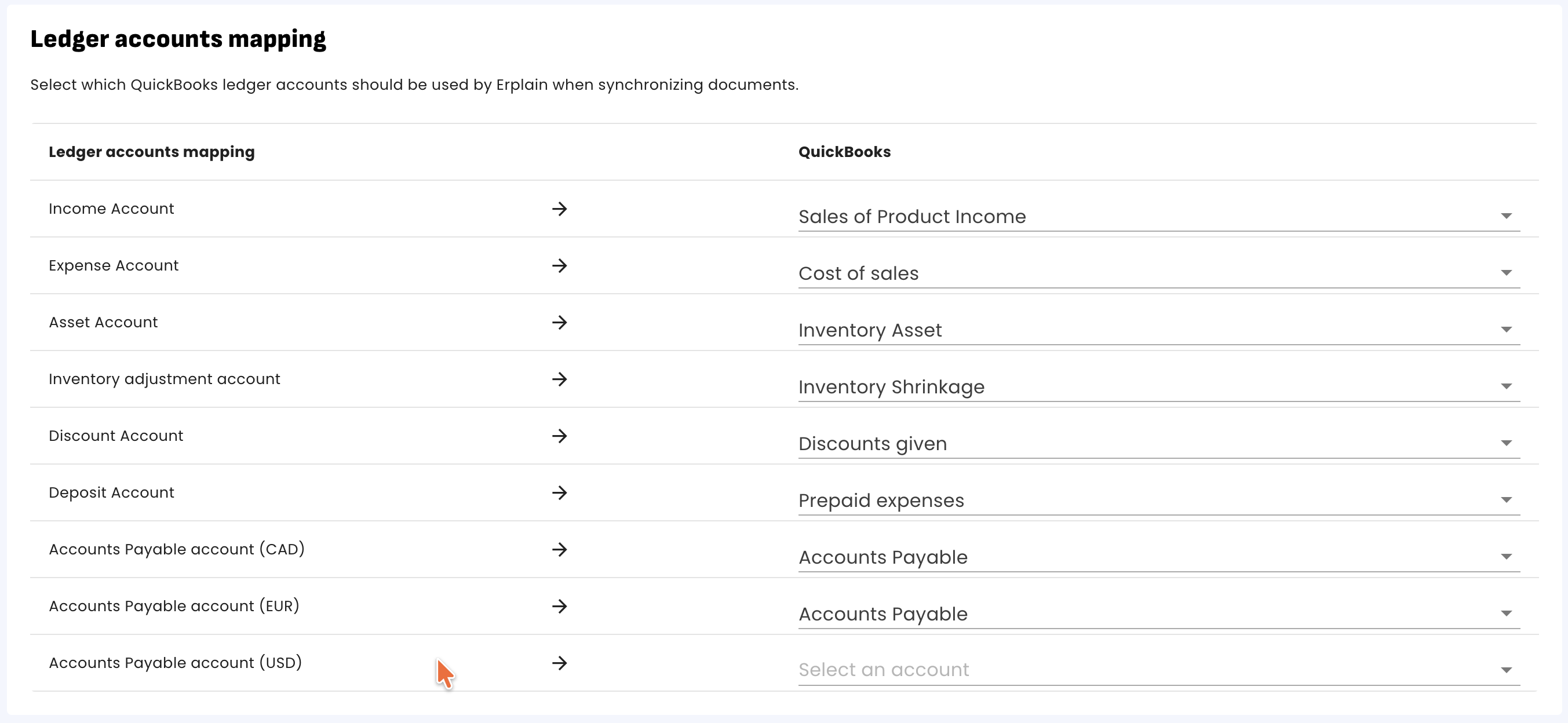
For product accounts (Income, Expense and Asset) they will only be used when Erplain creates a product in QuickBooks.
You can also edit each product's account directly in the QuickBooks section of the product page (or in QuickBooks directly)
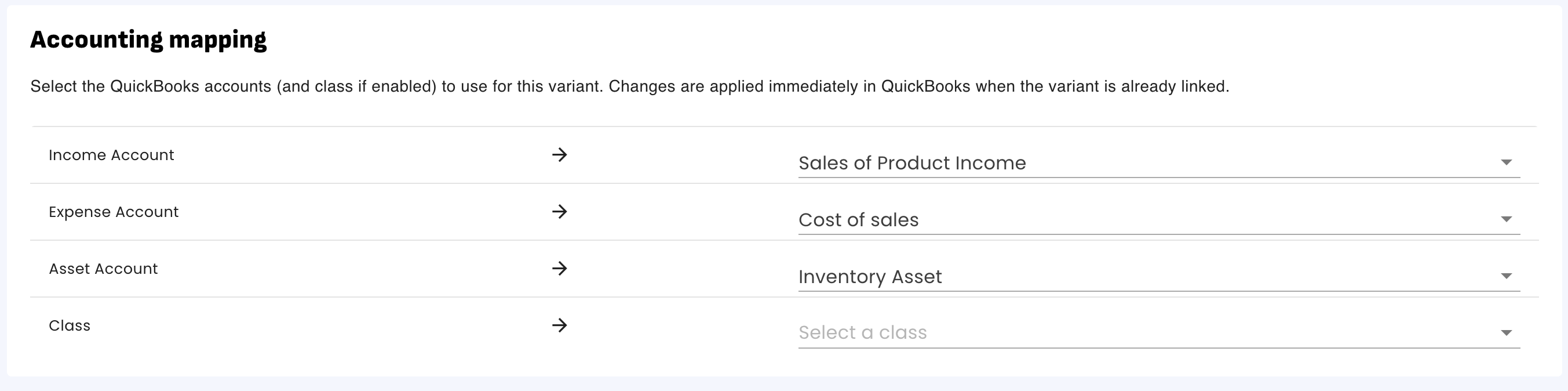
You can find more information about the Ledger Accounts mapping on this page.
You can automatically create a new tax on Erplain from the existing taxes in your QuickBooks account.
Note that if you create a tax that is a group of multiple taxes, it will automatically create the corresponding sub-taxes.
If you have existing taxes on both systems, you can map them together. This is required to send Invoices and Purchases orders to QuickBooks.
In the left column, we listed all the taxes created from Erplain and in the right column, the list of taxes from your QuickBooks account. You need to map the tax code from QuickBooks. Simply select the desired accounts to map your taxes between erplain and QuickBooks: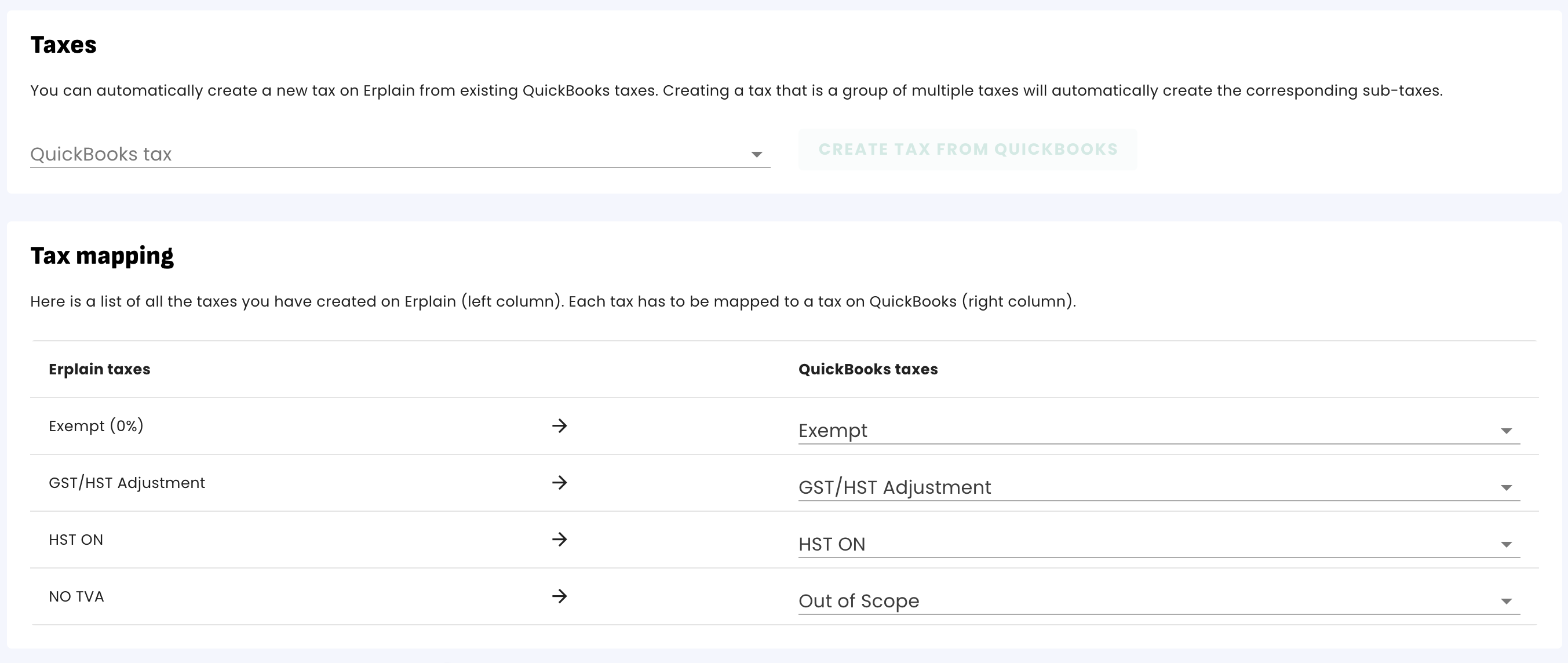
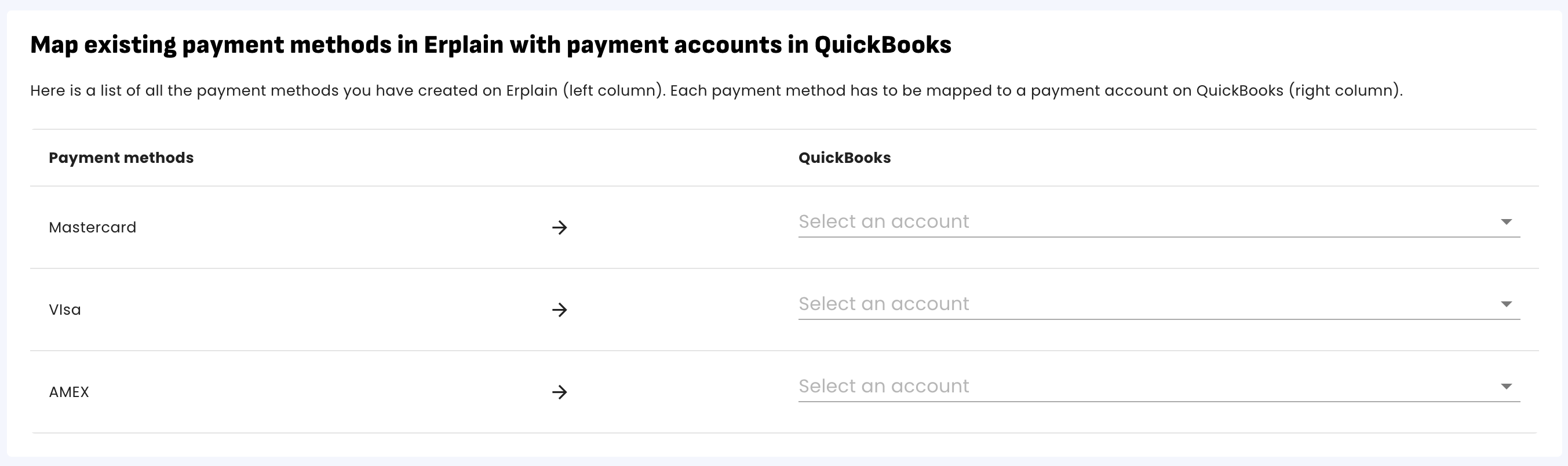
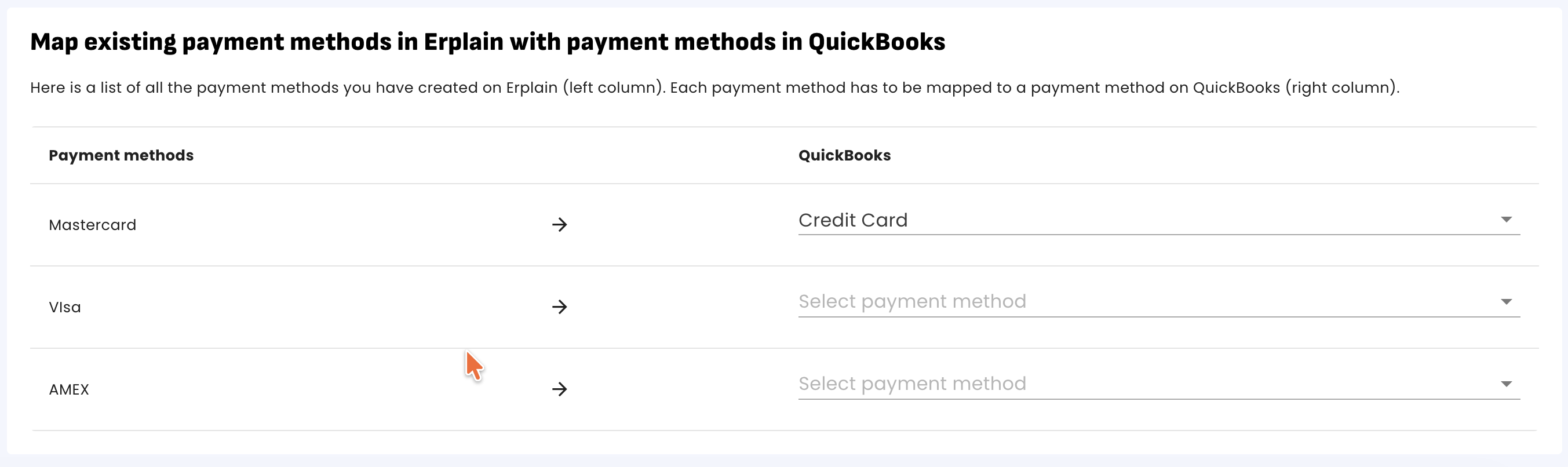
Payment methods
Documents sync
You can control when to send your Erplain transactions (Invoice and Purchase Orders) to QuickBooks. By enabling the option below, your Invoices and Purchase orders will be sent automatically to QuickBooks.
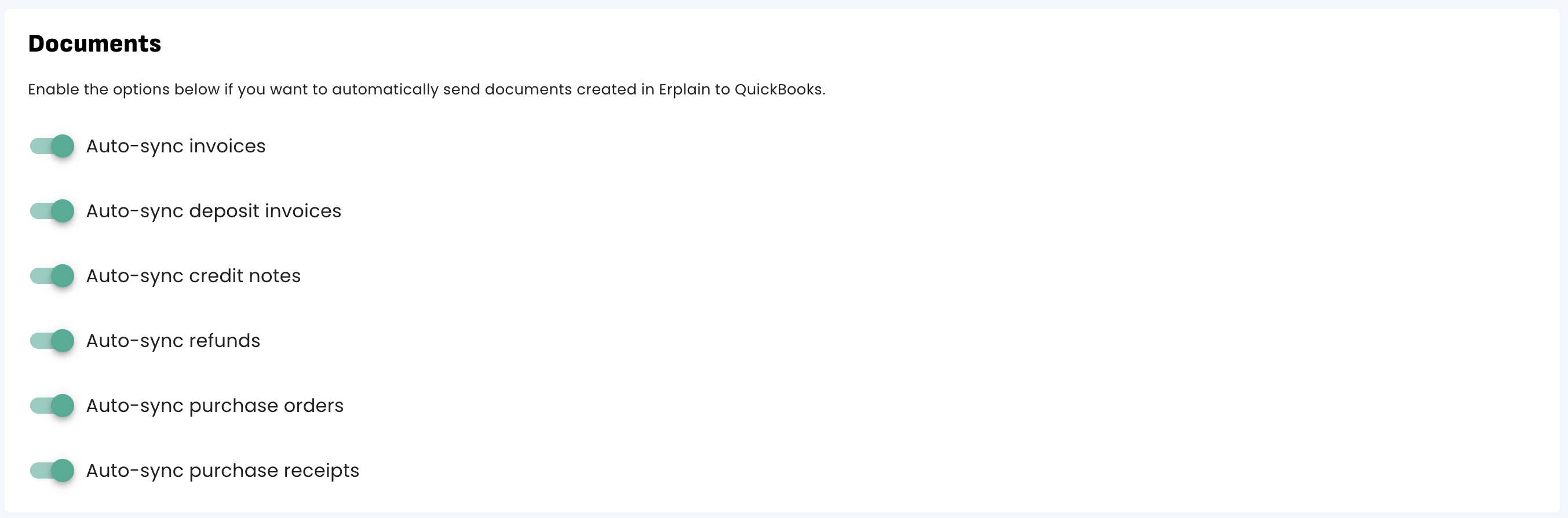
If this is disabled, you will see a "Sync to QuickBooks" button in the transactions. Disabling it ensures that the transactions are only sent over to QuickBooks when you do so manually.

Selecting the Sync start date is optional. This is only used if you have been using erplain and creating transactions before connecting to QuickBooks.

Custom fields
This option will only be displayed if you have created custom fields in QuickBooks.

- Account Manager Sync
If you have created a custom field in QuickBooks for your sales team (Account managers, Account reps,...), you can map it to Erplain's Account Representative field.
- External Reference Sync
If you have created a custom field in QuickBooks for your Purchase Order numbers (for example), you can map it to erplain's External Reference field. The External Reference field will be included in the invoice sent to QuickBooks, in the corresponding custom field.
- Sales Order number Sync
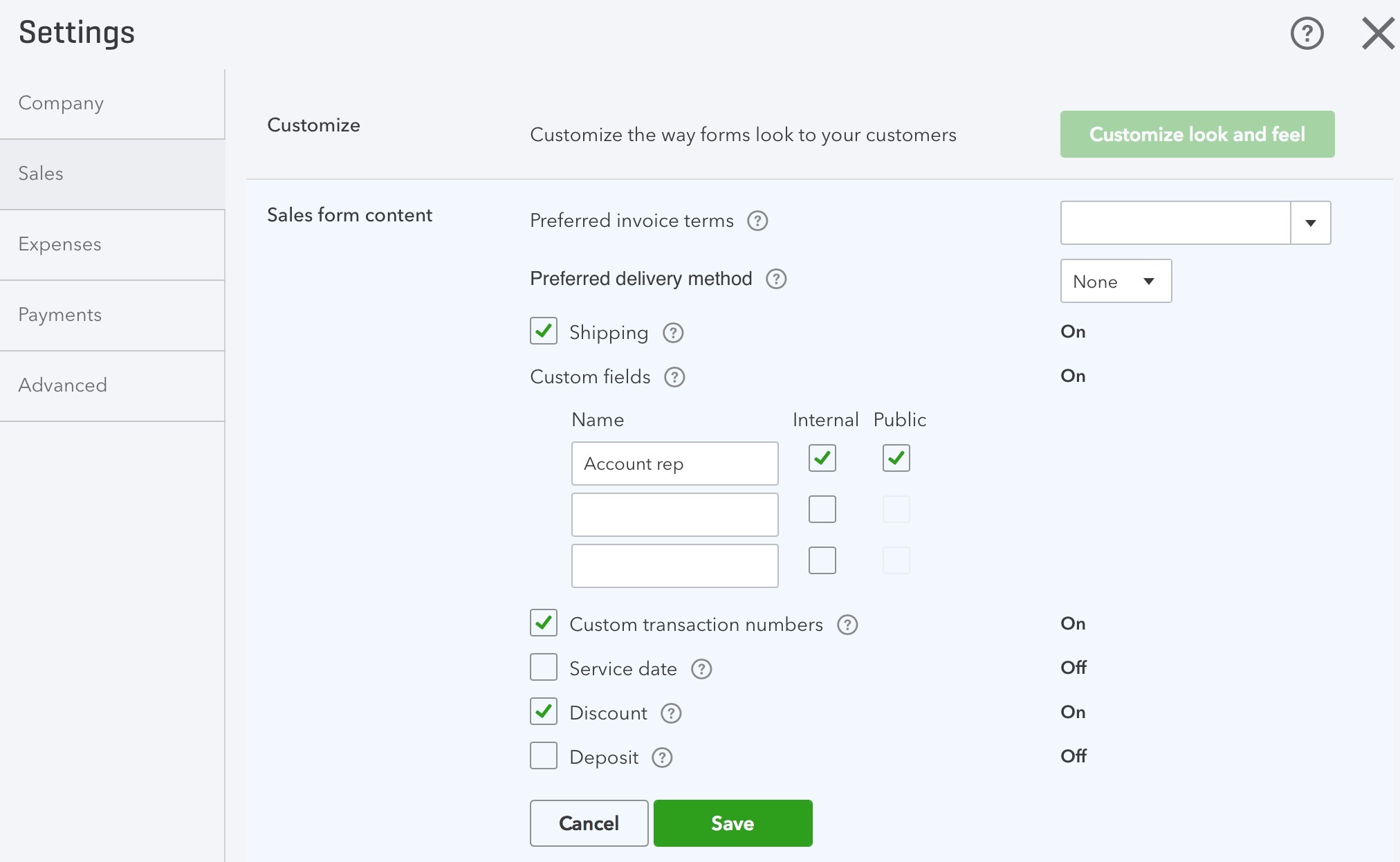
You can include the Erplain Sales order number in your QuickBooks invoices. Make sure to add a custom field in QuickBooks for the sales order number.
In QuickBooks Online, you can create a custom field by going in 'Settings' > 'Sales':
Connection
In this tab, you can disconnect Erplain from your QuickBooks account.
IMPORTANT - Connecting Erplain to a new QuickBooks account
Disconnecting your Erplain account from QuickBooks to connect to a new QuickBooks account is not supported. We recommend that you either:
1. Open a new Erplain account for the new QuickBooks account or
2. Delete all the data in your account before connecting Erplain to a new QuickBooks account.
Once you connect erplain to QuickBooks, your products are linked, your invoices are linked and your customers are linked. You would experience many inventory issues by connecting to a new QuickBooks account.
Was this article helpful?
That’s Great!
Thank you for your feedback
Sorry! We couldn't be helpful
Thank you for your feedback
Feedback sent
We appreciate your effort and will try to fix the article