Once you connect erplain with QuickBooks, all purchase orders created from Erplain can be sent to QuickBooks just like if you had created them directly in QuickBooks.
You can choose to send these purchase orders automatically in the document section of the QuickBooks settings.
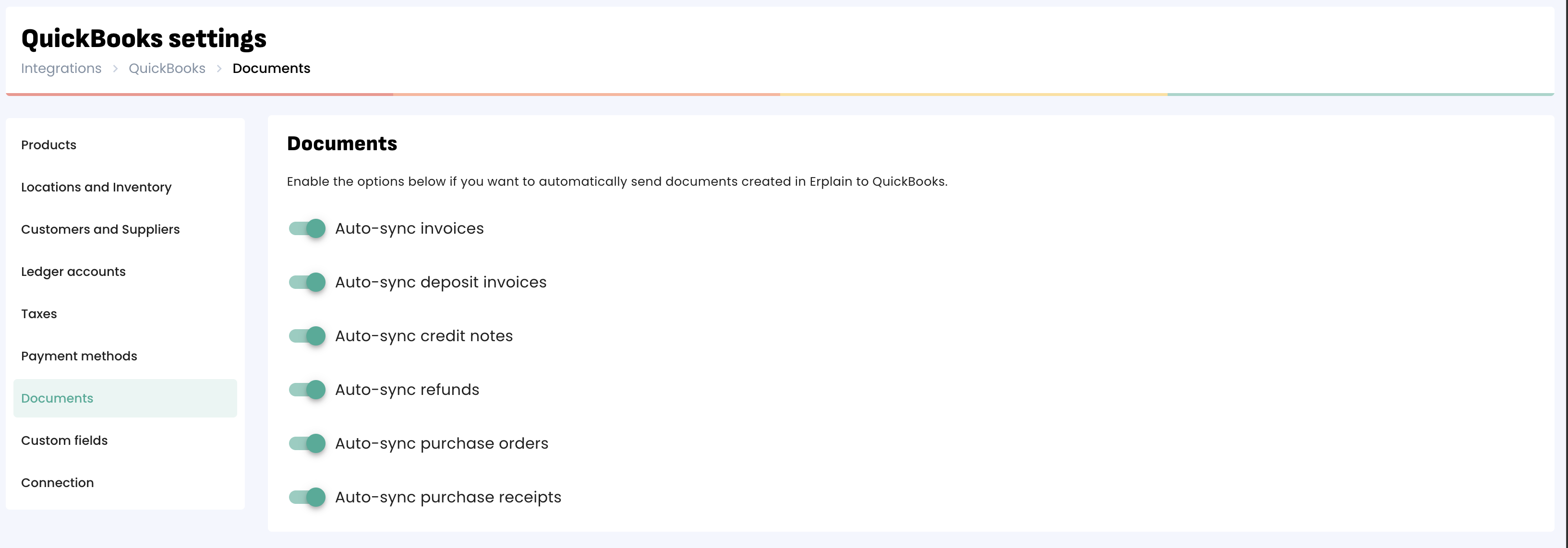
If this option is not enabled, you will see a 'Sync to QuickBooks' button in the purchase order to send it to QuickBooks
If you have enabled the option to send automatically and still see the 'Sync to QuickBooks' button, this means that QuickBooks rejected the purchase order. You can click on the button, you will see the related error message. You can find the list and solutions of QuickBooks error messages on this page.
Once the purchase order is sent to QuickBooks, you will see the QuickBooks ID, just like with the invoices. You can also click on the ID to open the document in QuickBooks.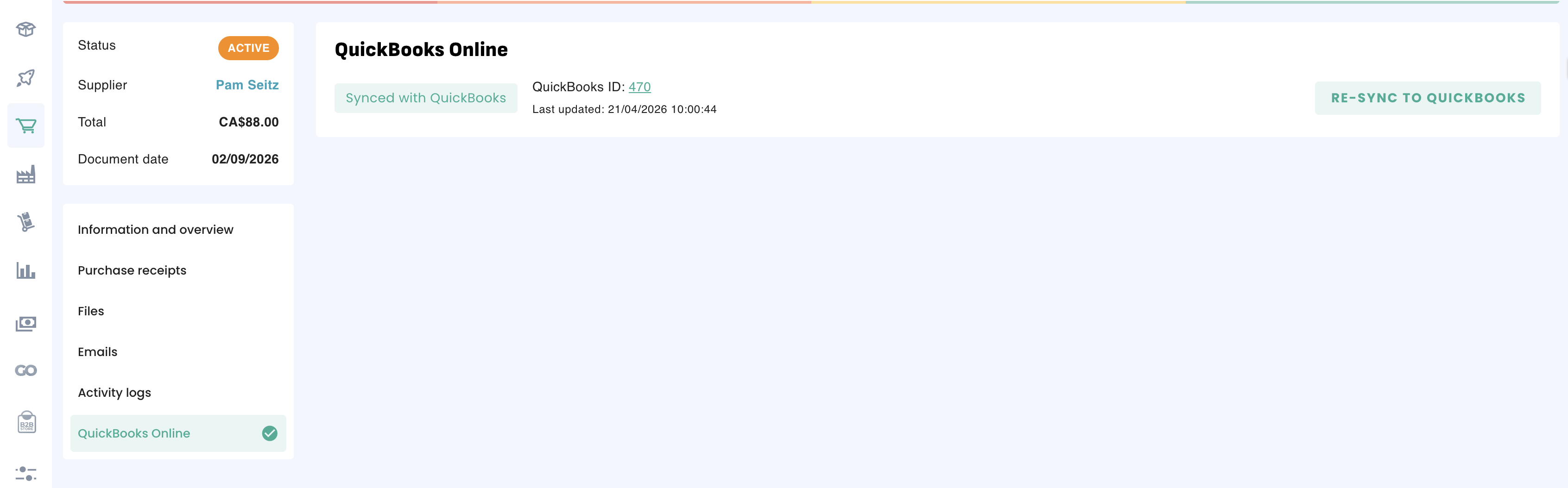
If you create a purchase order in QuickBooks, this purchase order will not be created in Erplain.
Receiving products and Vendor bills
A new bill of expense will be created in QuickBooks as soon as a new purchase delivery (you have received the products ordered) is created on Erplain.
If you receive multiple deliveries in Erplain, QuickBooks will create as many bills as there are deliveries. In order to keep only one bill to the vendor, you will need to cancel your partial deliveries and recreate a global one from Erplain. Canceling a purchase delivery will delete the bill in QuickBooks.
You can find more information about Purchase Orders and Deliveries in this article.
After the purchase order has been published to QuickBooks, we recommend adding the deliveries (bill of expense) on rplain and not in QuickBooks. Bills of expenses in QuickBooks will not be synced back to Erplain.
Shipping and handling cost
Purchase orders in QuickBooks don't support Shipping and Handling as a separate information / field. Therefore, we recommend adding the shipping cost as a separate line item in the purchase orders and not in the shipping cost field, it would create a difference in the total amount between Erplain and QuickBooks. This line item can be a non-inventory product or a service.
You can also manually add the cost in the product purchase price when you receive the products from your supplier.
Cancelling the purchase order
Cancelling the purchase order in Erplain will delete the purchase order in QuickBooks.
Updating the purchase order
If you update a purchase order in Erplain it will update the purchase order in QuickBooks, but if you update the purchase order in QuickBooks it will not be updated in Erplain.
Cost of Goods Sold
Please note that QuickBooks will calculate the Cost of Goods Sold from the Purchase Orders, Bills of expense, and Invoices that are in QuickBooks. Erplain does not send a separate Cost of Goods Sold to QuickBooks.
Attached files
For more information on how to sync attached files from a purchase order between QuickBooks and Erplain you can check this article.
You can find more details on the integration settings in the QuickBooks settings page.
Was this article helpful?
That’s Great!
Thank you for your feedback
Sorry! We couldn't be helpful
Thank you for your feedback
Feedback sent
We appreciate your effort and will try to fix the article