Once Erplain is connected to QuickBooks Online and Shopify, all your Sales orders and Invoices created in Shopify will be created in Erplain, then in QuickBooks. Your Inventory, products, customers and suppliers will be synced in real time between the 3 systems.
Connecting Erplain to QuickBooks and Shopify
Important: Prior to connecting Erplain to QuickBooks Online and Shopify, please make sure to disable all other Apps that would connect QuickBooks and Shopify directly.
Open the Integrations menu and click on 'Connect' for either of the apps:
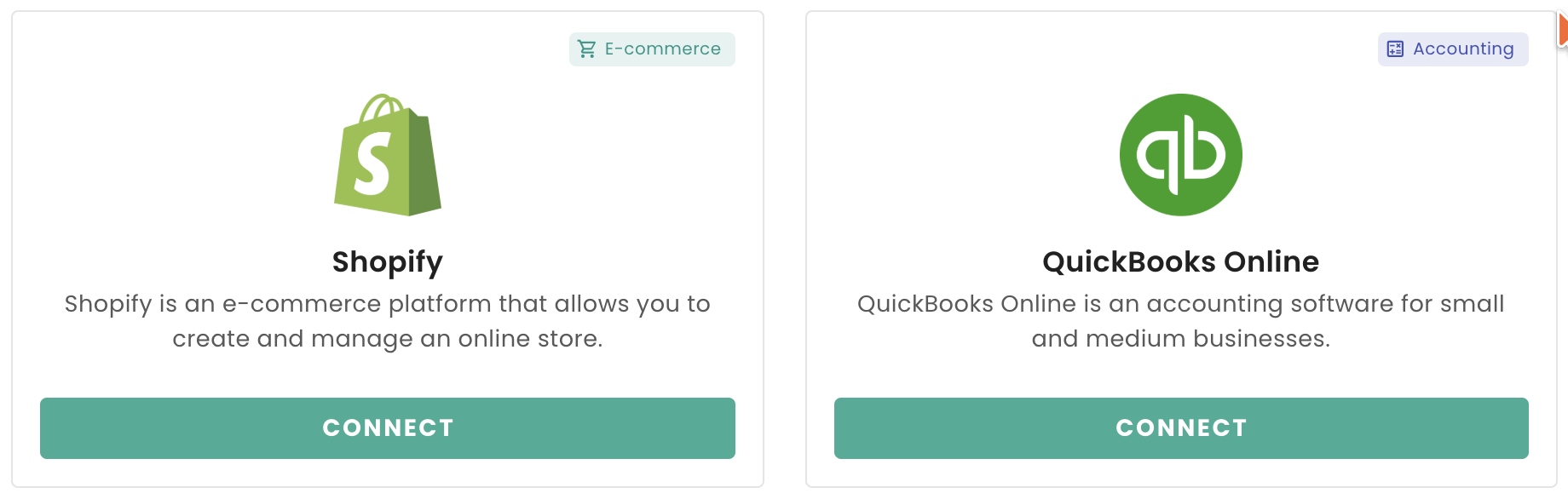
You can find more information on the connection Settings for QuickBooks Online on this page and more information on the connection Settings for Shopify on this page.
Products sync and Products mapping
Once you are connected to QuickBooks and Shopify:
- If you don't yet have any product in QuickBooks or Shopify, simply Export your products from Erplain to QuickBooks or from Erplain to Shopify.
In the QuickBooks settings:

In the Shopify settings:

If you already have products in QuickBooks and Shopify you can map your products between the 3 software.
Please consider the 3 following scenarios:
1. Erplain was connected to QuickBooks Online
Assuming that your products between QuickBooks and Erplain are already mapped, you can now map your products between Erplain and Shopify.
Scroll down to Products Mapping in the products section of the integration settings:
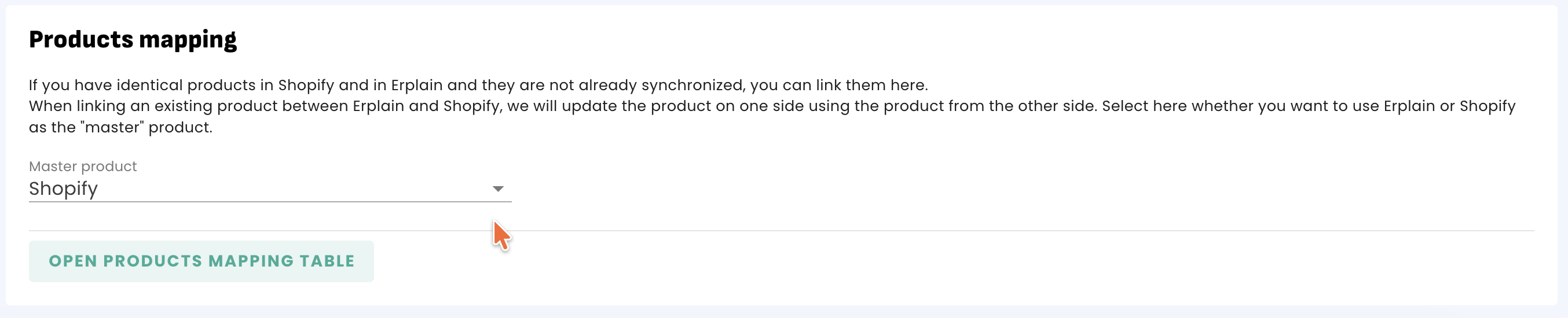
- Choose which system (Erplain or Shopify) will be the "Master", then click on Save and "Map products". This master setting will only apply at the time of the mapping if there is different information in both systems.
For example, if Shopify is the master and a product name in Shopify is "Product ABC V1" and "Product ABC Version1" in erplain, the name in Erplain will become "Product ABC V1".
Once products are mapped, they will sync both ways, any change in one system will be applied to the other one.
- For each product, you can search for the matching product in Shopify or click on Auto suggest to find a possible match between Erplain and Shopify.

While searching for the product, you can type the product name or SKU. We also recommend typing the exact same name of the product while searching.
2. Erplain was connected to Shopify
Assuming that your products between Shopify and Erplain are already mapped, you can now map your products between Erplain and QuickBooks.
Scroll down to the product mapping menu in the products section of the QuickBooks settings: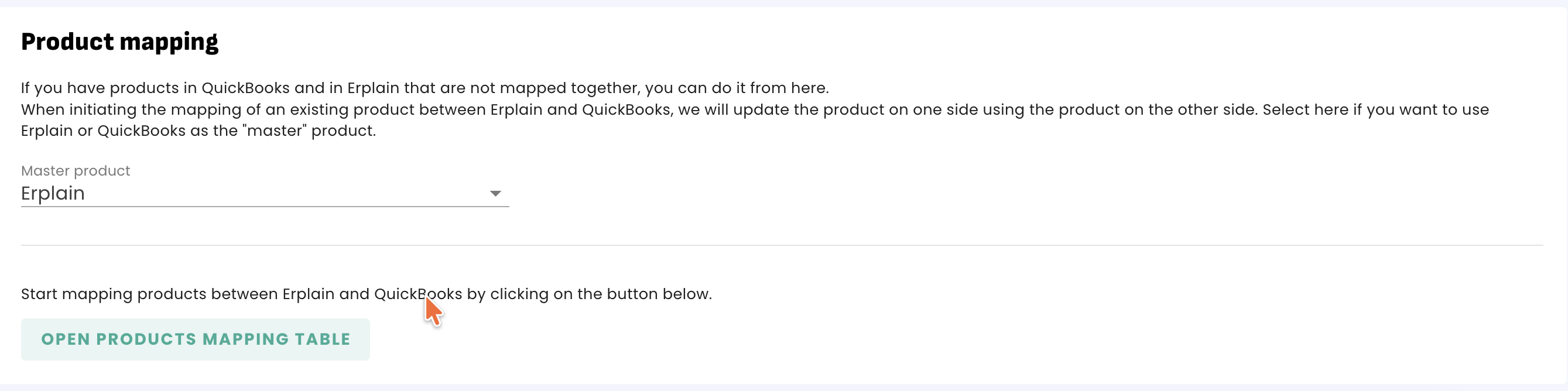
- Choose which system (Erplain or QuickBooks) will be the "Master", then click on Save and "Map products". This master setting will only apply at the time of the mapping if there is different information in both systems.
For example, if QuickBooks is the master and a product name in QuickBooks is "Product ABC V1" and "Product ABC Version1" in Erplain, the name in Erplain will become "Product ABC V1".
Once products are mapped, they will sync both ways, any change in one system will be applied to the other one.
- For each product, you can search for the matching product in QuickBooks or click on Auto suggest to find a possible match between Erplain and QuickBooks.

While searching for the product, you can type the product name or SKU. We also recommend typing the exact same name of the product while searching.
3. Erplain was never connected to QuickBooks Online or Shopify
Start by connecting Erplain to either QuickBooks or Shopify. Then setup the connection between the 2 systems, and then proceed to the next step #1 or #2 above.
Price Sync
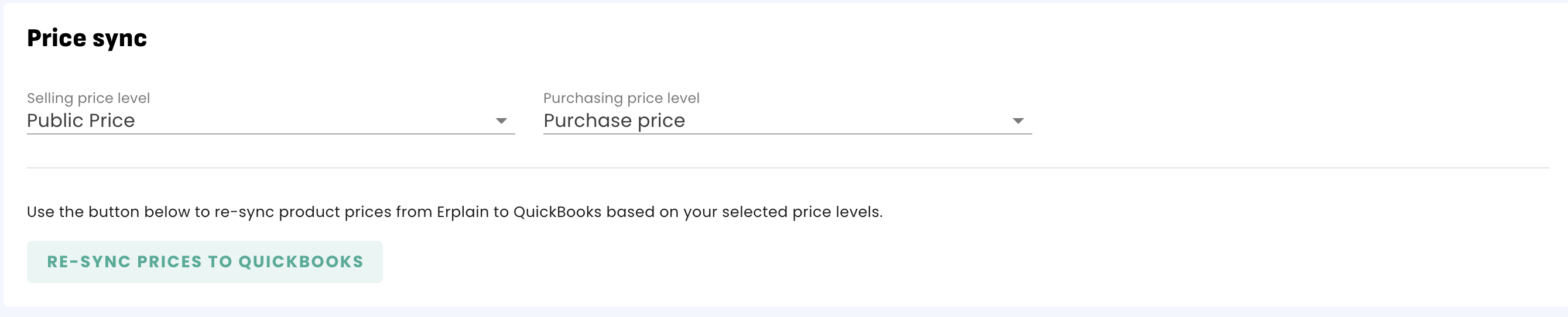
In the integration settings, please select the product price you would like to sync with Erplain.
For QuickBooks:
For Shopify:

Important: You can sync the Wholesale price between Erplain and QuickBooks, and the Retail price between Erplain and Shopify but if you later update the sync between Erplain and QuickBooks to Retail price (for example), it will overwrite the Wholesale prices in QuickBooks.
Stock level sync
As Shopify and Erplain support Sales orders but not QuickBooks, there is a small difference on the stock level sync:
- Between Erplain and QuickBooks this is the On-hand stock that syncs between the 2 systems.
- Between Erplain and Shopify this is the Available stock that syncs between the 2 systems. Please remember that manual stock adjustments done in Shopify will not be synced to Erplain. It is recommended to use Erplain to do your stock adjustments (stock entry, removals, bulk update).
For more information on On-Hand and Available stocks, please visit this page.
Was this article helpful?
That’s Great!
Thank you for your feedback
Sorry! We couldn't be helpful
Thank you for your feedback
Feedback sent
We appreciate your effort and will try to fix the article
