Manufacturing orders, also referred to as production orders, are documents designed to initiate and track the production of products according to internally established processes.
A manufacturing order in Erplain allows you to create assembled products from components also present in your inventory.
Finished products and components coexist in your product catalog and can be sold together or separately.
Prerequisites: To be able to launch a manufacturing order in Erplain, 2 elements must have been set up beforehand.
- A Bill of Materials (BOM), which consists of determining the set of components required to create one unit of the assembled product. A product can have multiple bills of materials if several combinations of components can be used to create it.
- A Routing, which is the manufacturing process that will be followed throughout the life of the production order. It simply involves defining the steps and responsibilities during production.
Once these elements are in place, you can create a production order from the Orders submenu in the Manufacturing menu. 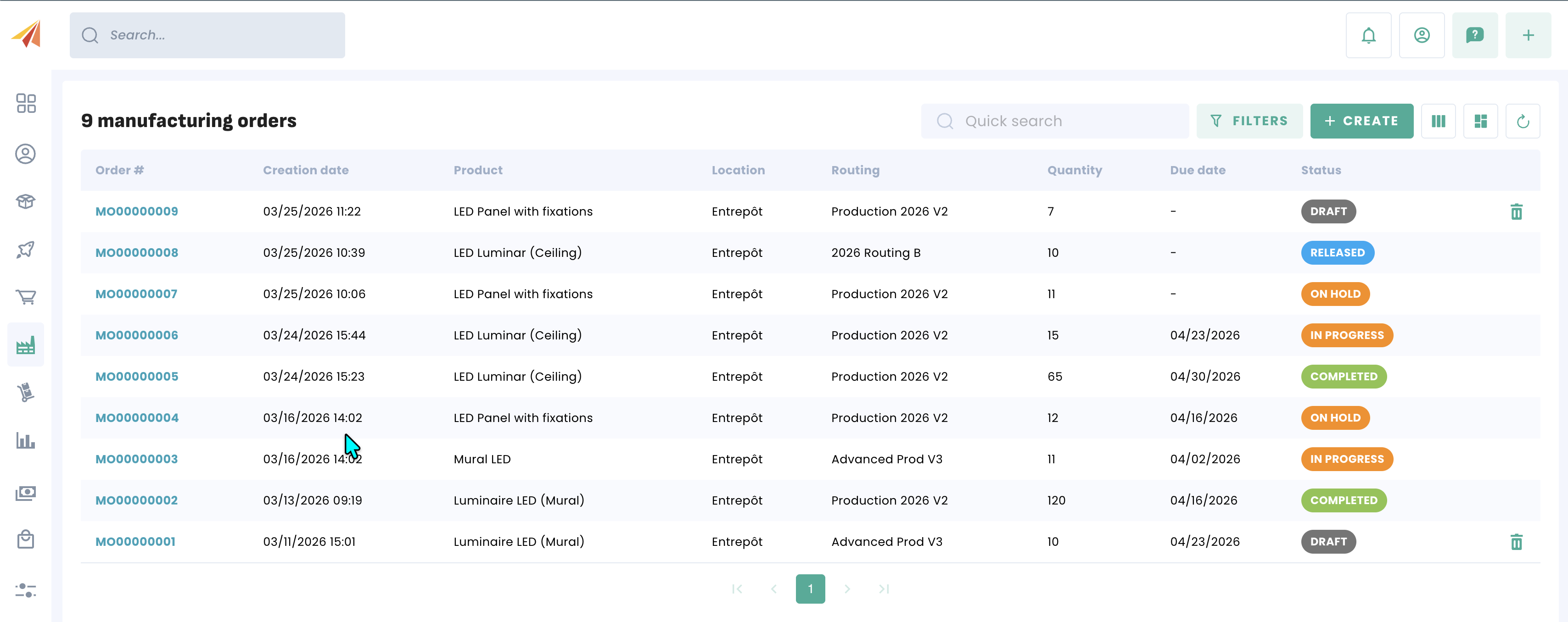
You will then have access to the manufacturing order creation form. This allows you to determine which product will be manufactured, the number of units, the deadlines, the bills of materials and routings used, as well as the identity of the subcontractor if part of the process is outsourced. 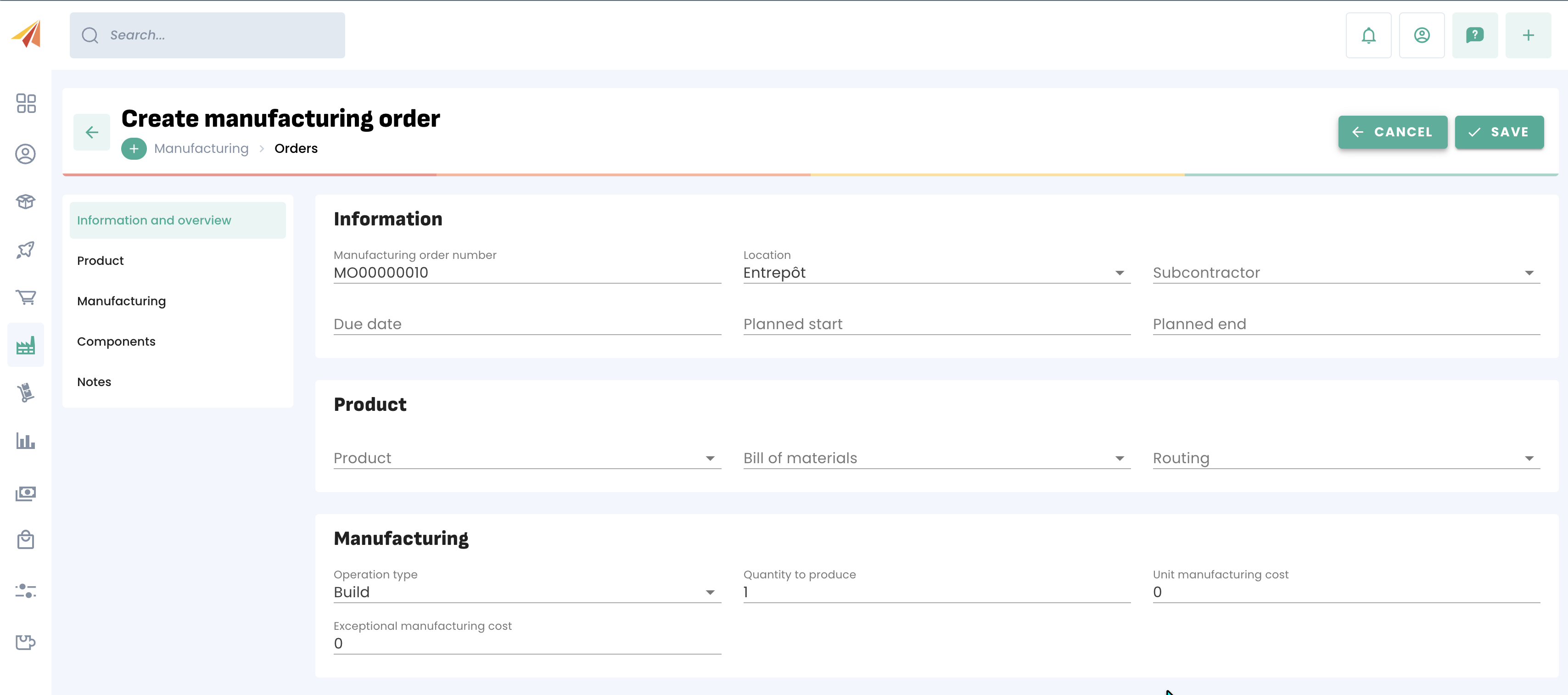
There is also the option to choose between assemble and disassemble. Assemble will create new units of the product from the components, while disassemble will remove units of the finished product and add them back to the component inventory.
The Components section lists the components specified in the bill of materials; they can be modified if needed. Finally, the notes section allows you to add additional information.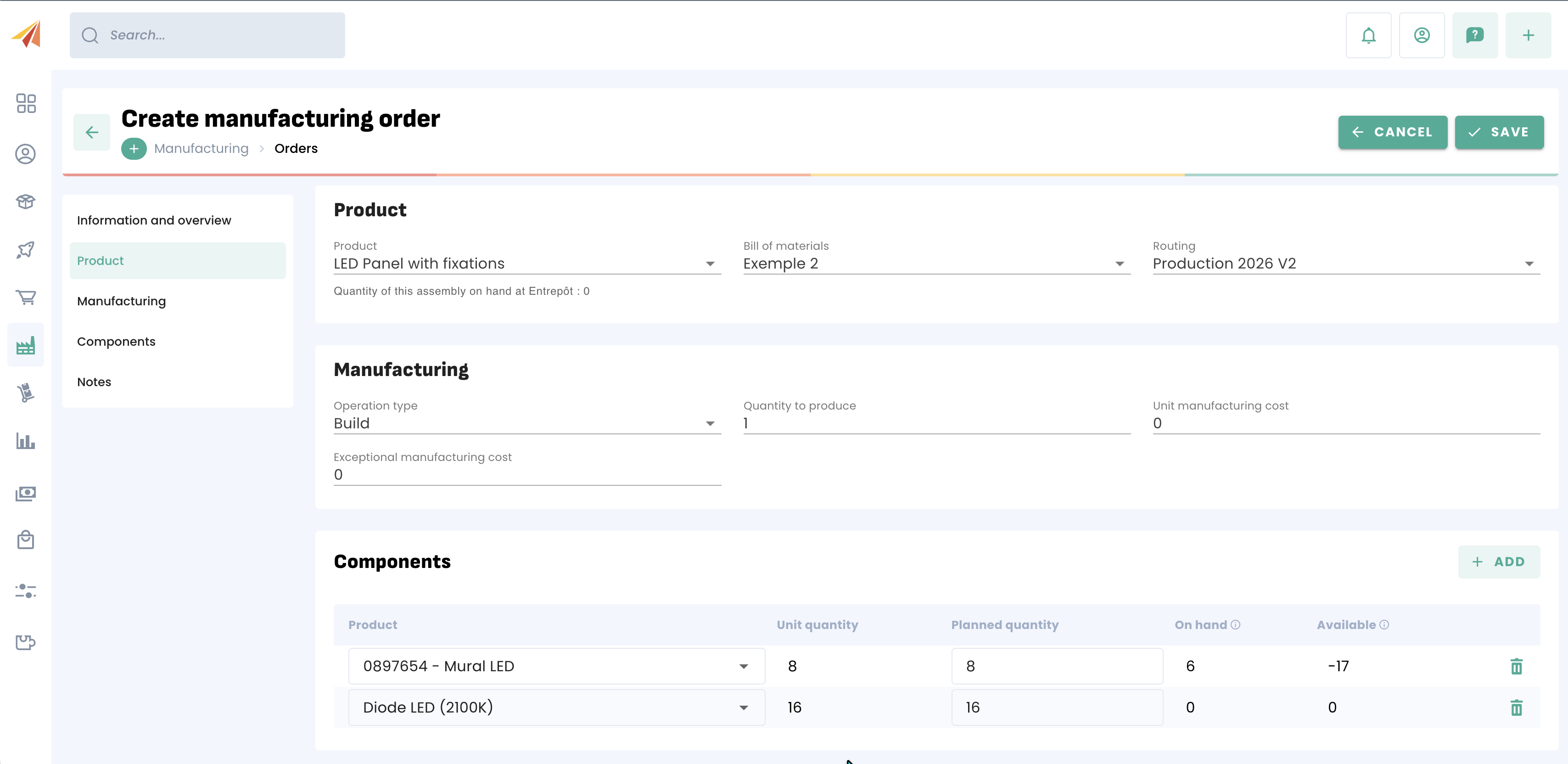
Once the manufacturing order is saved, it is first generated with a Draft status. As soon as the order is created, it is available in the Calendar submenu, which allows you to track manufacturing orders along with their various statuses and deadlines.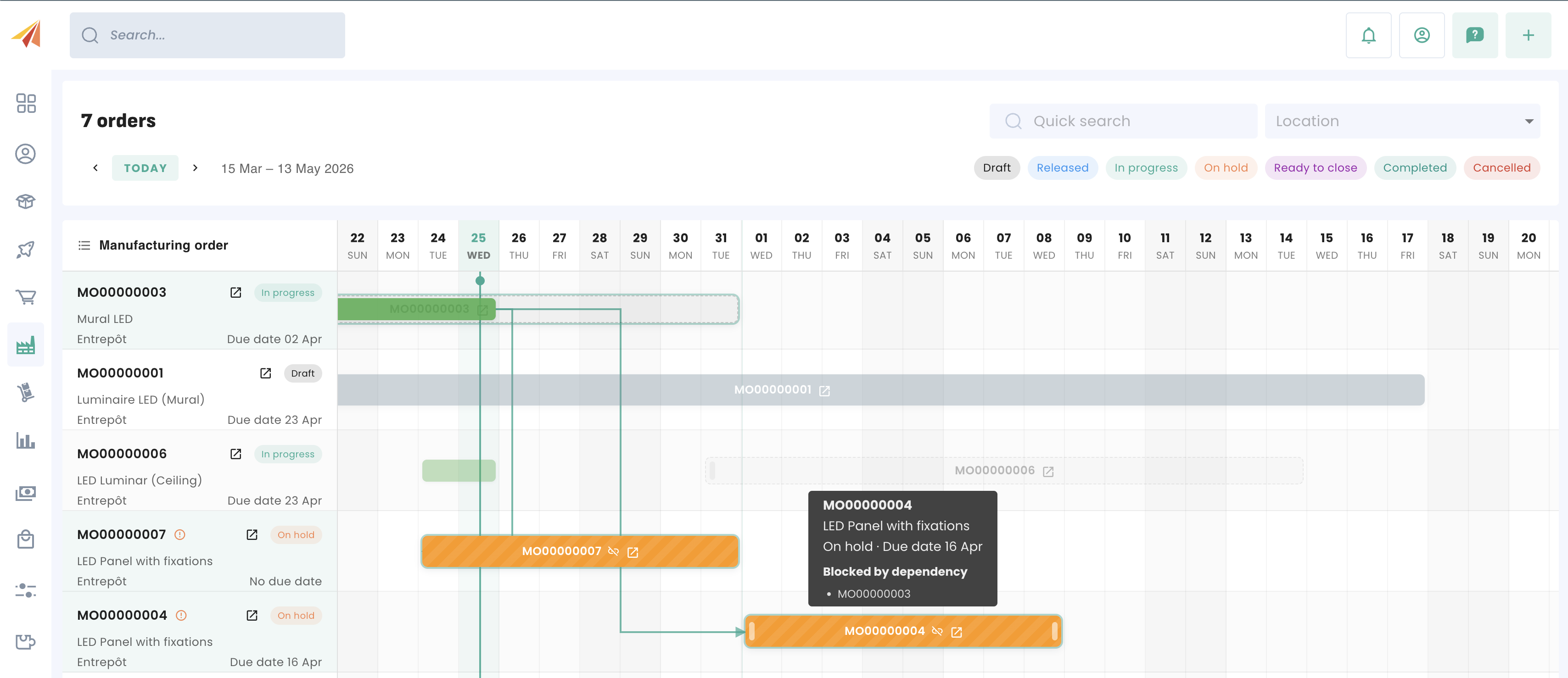
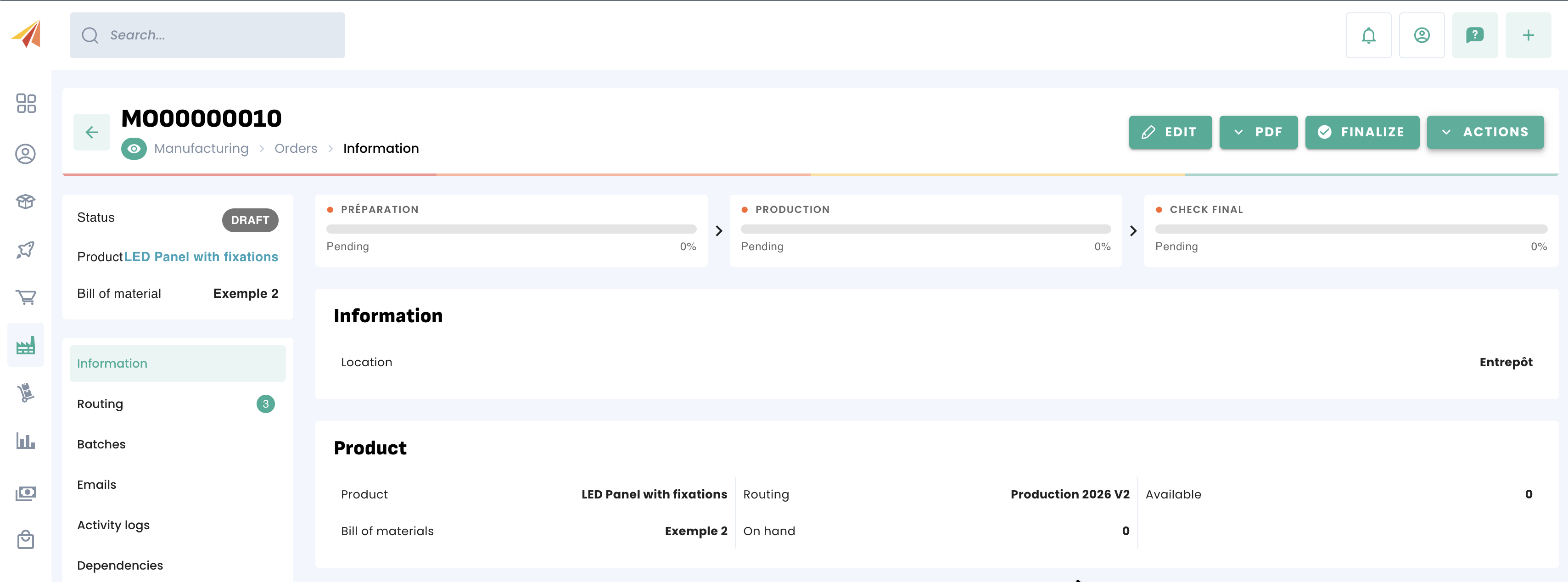
By clicking Finalize, the manufacturing order takes on the status Released, and gives you the option to start the various steps of the Routing. Each step can then be started and completed one by one.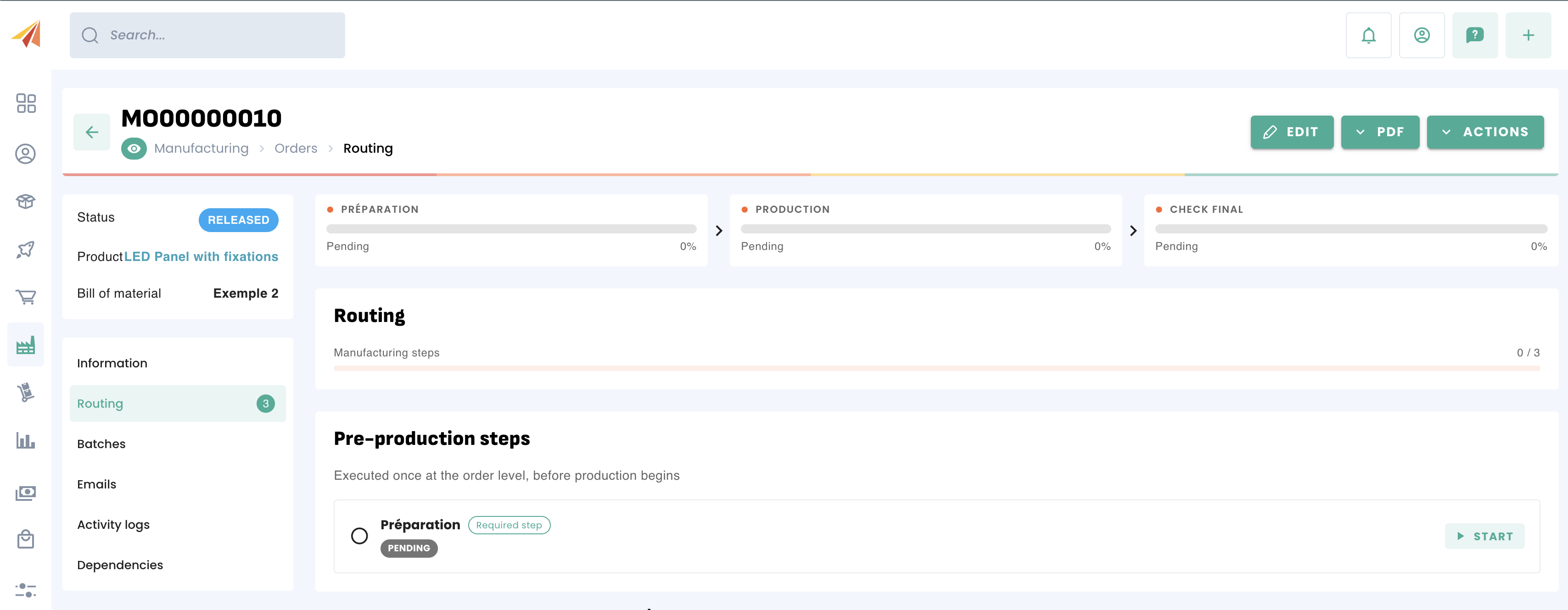
Note: When the manufacturing order moves to Released status, the quantities it contains are added to the product's incoming stock.
At the conclusion of a step, it is possible to add an exceptional cost to account for any unforeseen circumstances.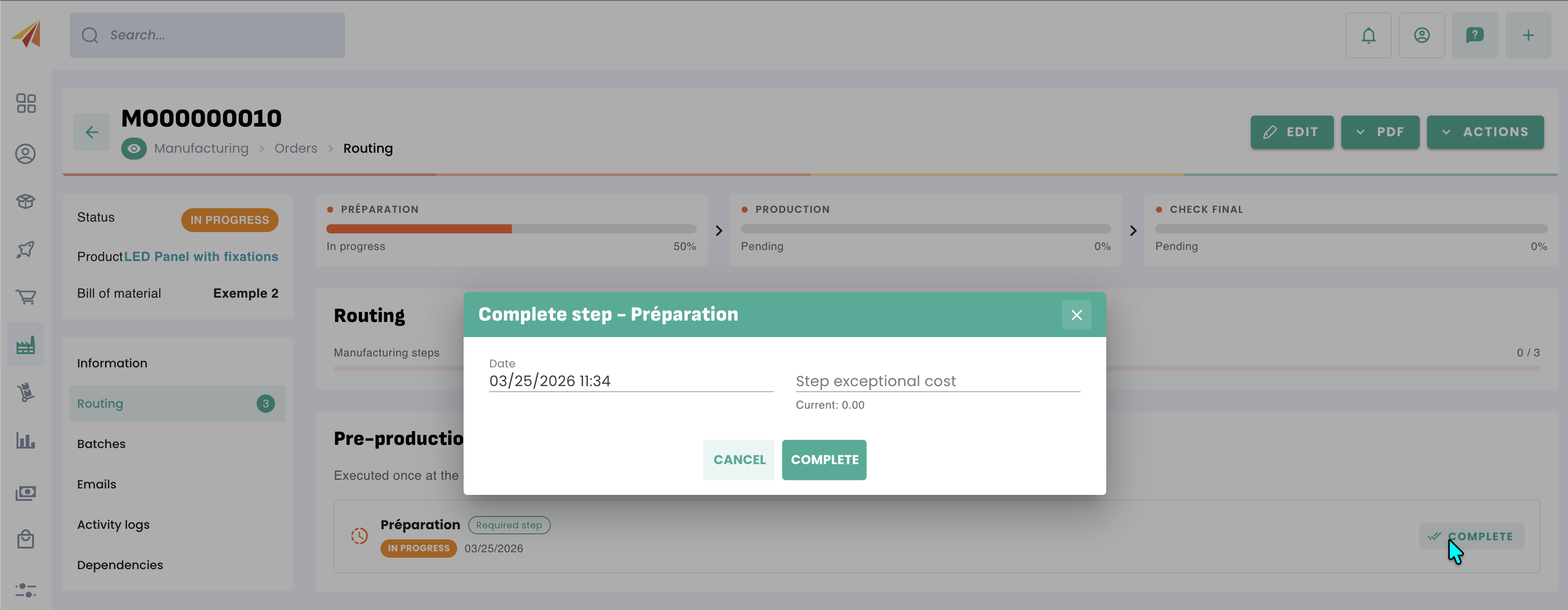
Steps that were not marked as mandatory when creating the Routing can be skipped. The production step is the only mandatory step by default. This step allows you to produce one or more batches of the products in the manufacturing order.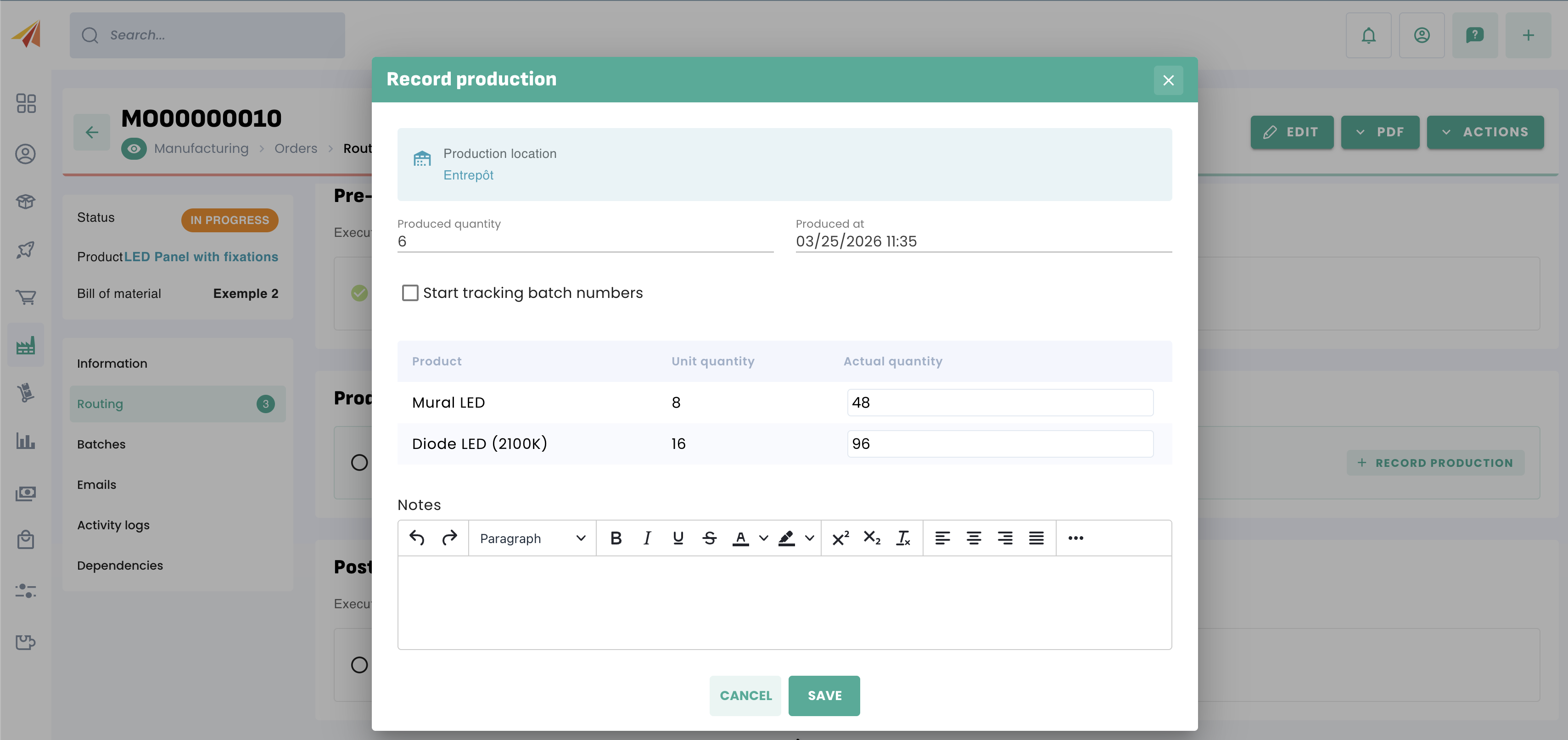
Once a first batch has been created, it can be finalized in the Batches section, by completing the post-production steps defined by the Routing. You can return to the Routing section at any time to record a new production run.
Note: When a production run is recorded, the quantities produced are removed from incoming stock and added to actual stock and available stock.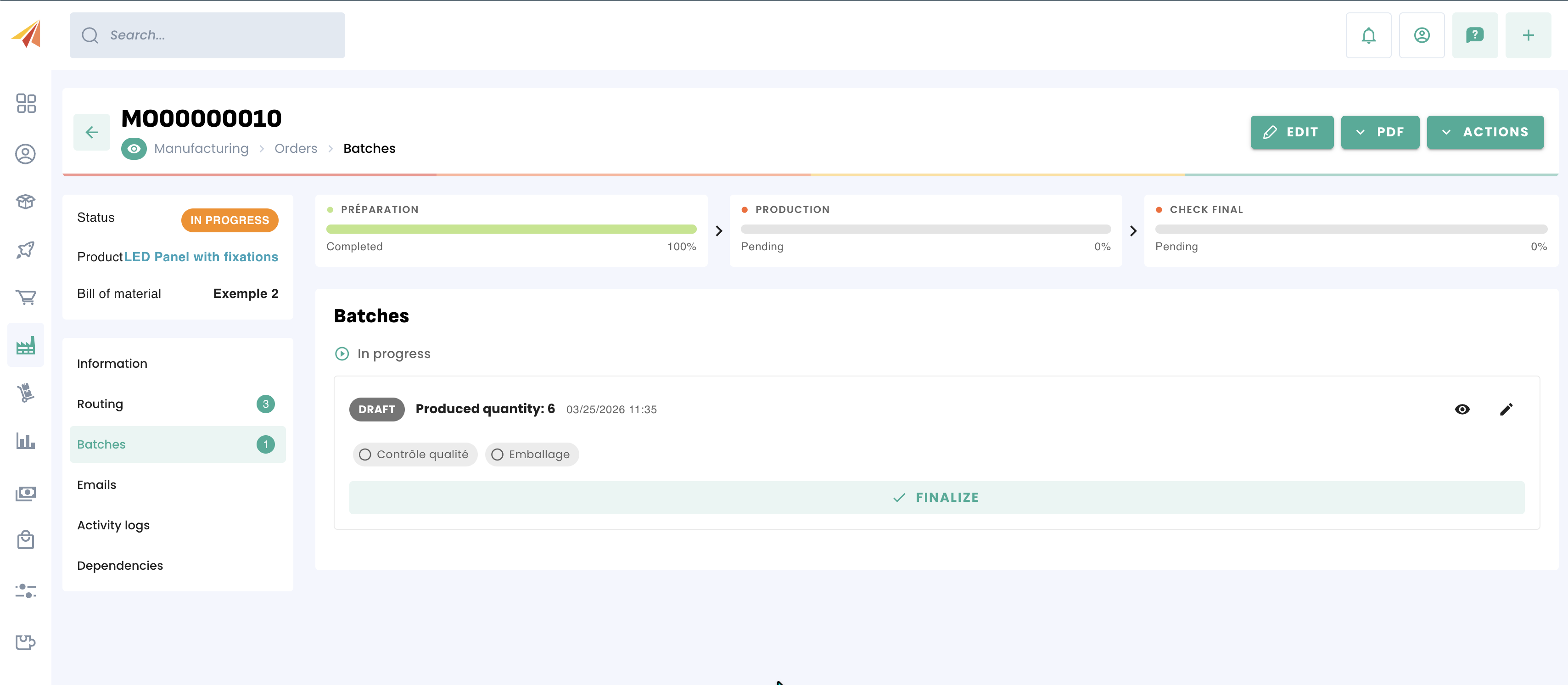
Once all steps are completed, the manufacturing order moves to a Ready to close status. All that remains is to click Complete to close it.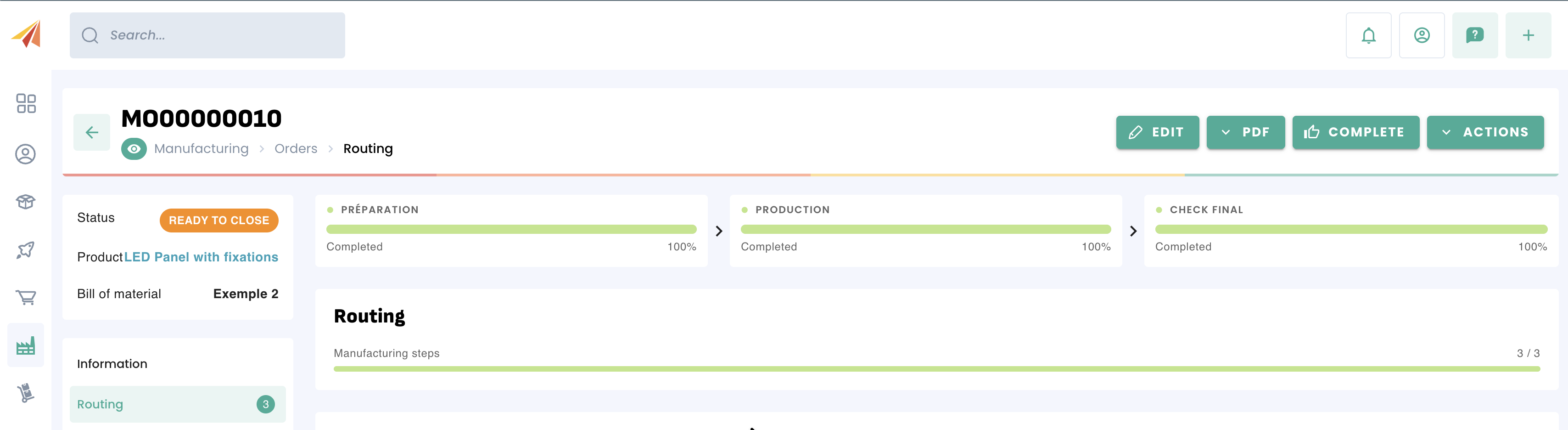
Was this article helpful?
That’s Great!
Thank you for your feedback
Sorry! We couldn't be helpful
Thank you for your feedback
Feedback sent
We appreciate your effort and will try to fix the article