Prerequisites
Before starting to configure Shopify, we invite you to create your price levels and check that your sales locations are correctly set up in both apps.
Access the Shopify settings
Once Erplain and Shopify are connected, go to 'Integrations' and click on 'Settings':
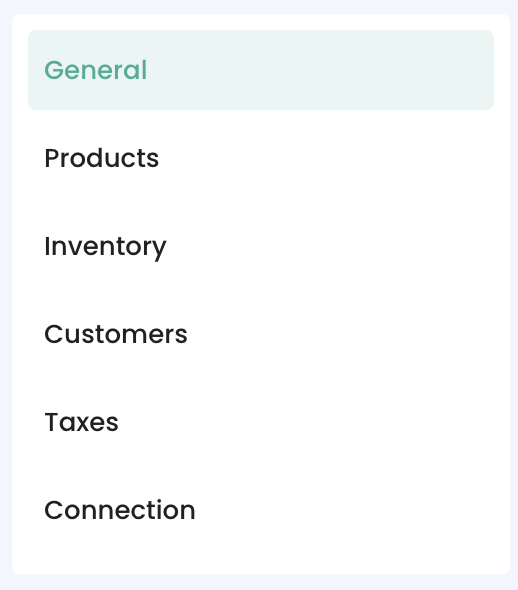
1. General
Selecting the sync mode
You can start by selecting which mode you will be using, depending on whether or not you want to import your Shopify orders into Erplain.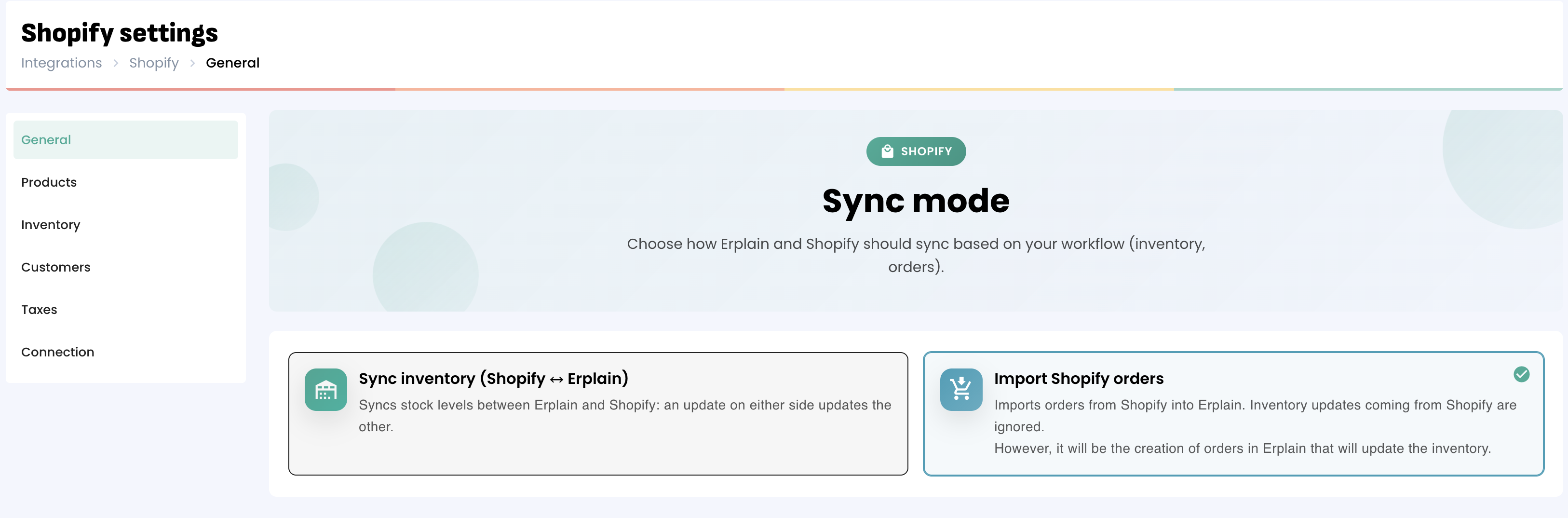
2. Products
Price levels and initial configuration
Choose the price level that you wish to use for your Shopify store.
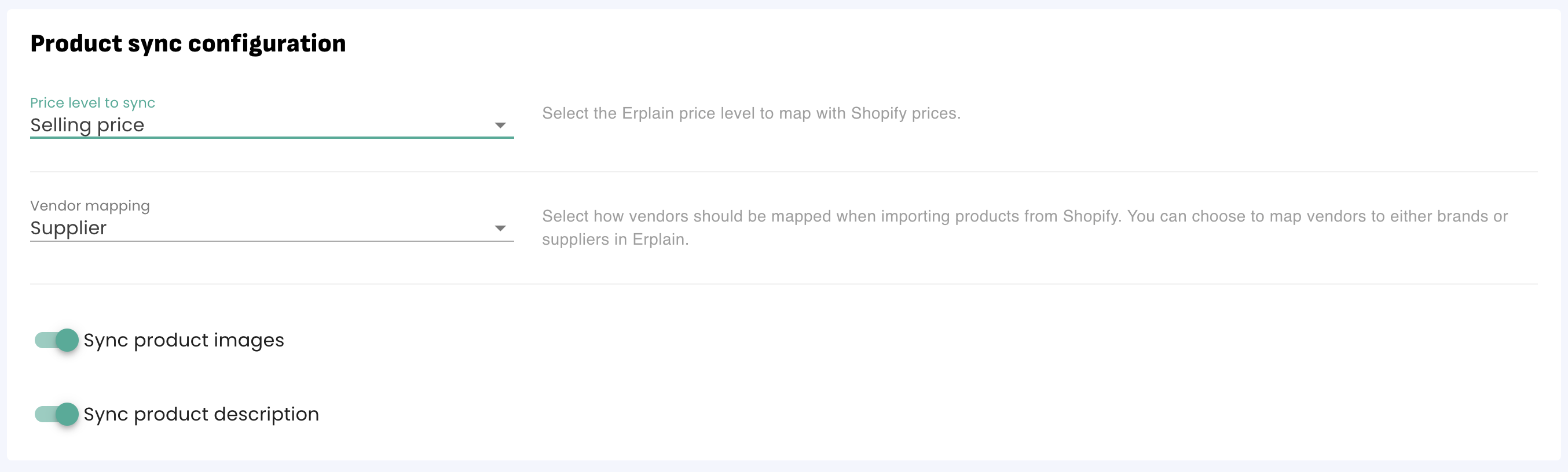
If you change the price level used for your Shopify store, make sure to Re-Sync your prices by clicking on "Re-Sync prices (from Erplain to Shopify)" or "Re-Sync prices (from Shopify to Erplain):
Product import/export
To import your products from Shopify to erplain, click on 'Start Import'.
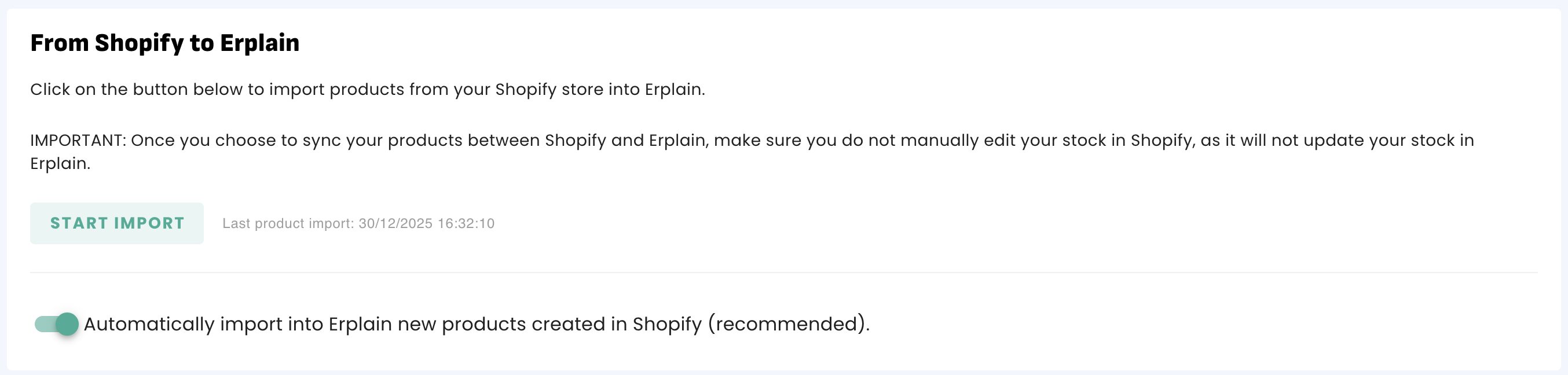
To export your products from Erplain to Shopify, click on 'Start Export'.

Product mapping
If similar non-synchronized products exist in both apps, you can map them via a simple product mapping.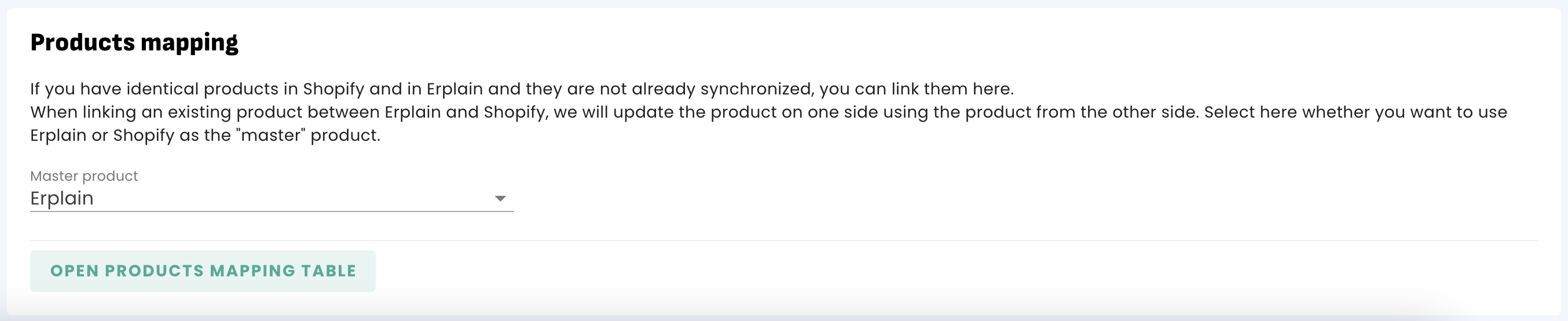
3. Inventory
Stock sync
You can sync the inventory both ways.

IMPORTANT: Please note that orders in Shopify don't have a location assigned to them. The location is only sent to Erplain when the order is fulfilled. In the meantime, Erplain will use the default stock location as selected in the location mapping section. The inventory will be updated in the location selected when you fulfill the order.
Location mapping and creation
If you have existing locations in Shopify that you want to map to their Erplain counterpart, you can use the mapping feature.
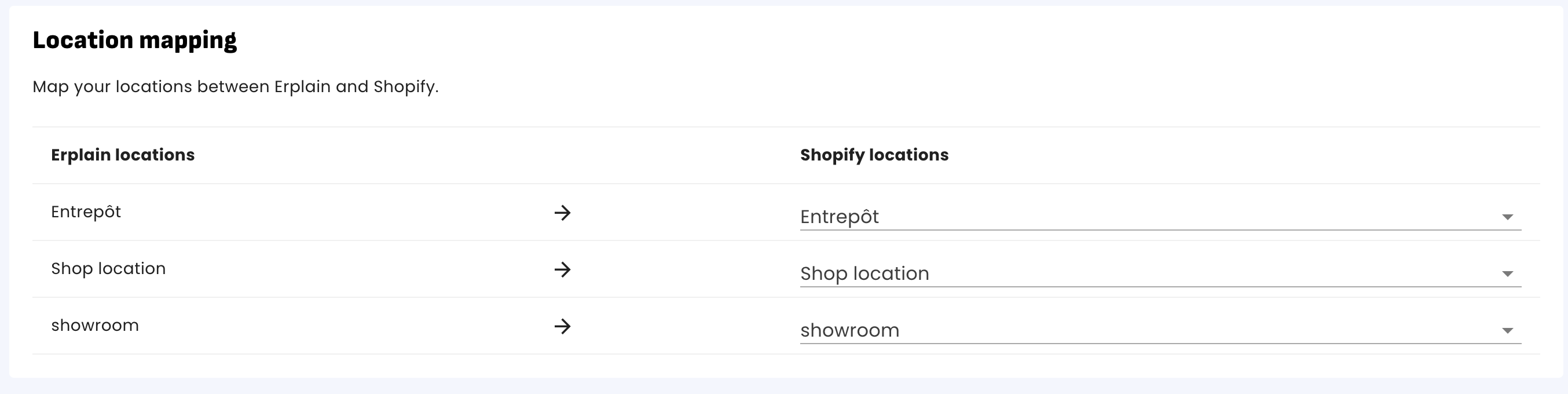
You can also create locations in Erplain based on your Shopify locations.

Batch tracking
If you have products where you have enabled batch tracking in Erplain, you can automatically allocate the batch numbers based on two logics:
1/ If the batches have an expiration date, the batches with the closest expiration date have priority
2/ If the batches don't have an expiration date, the oldest batches have priority

4. Customers
Automatic customer creation upon receipt of order
By default, when a new order is created in Shopify, the customer is created in Erplain.
You can also choose to group all of the Shopify orders under a single customer profile.
You can also import and export your customers.
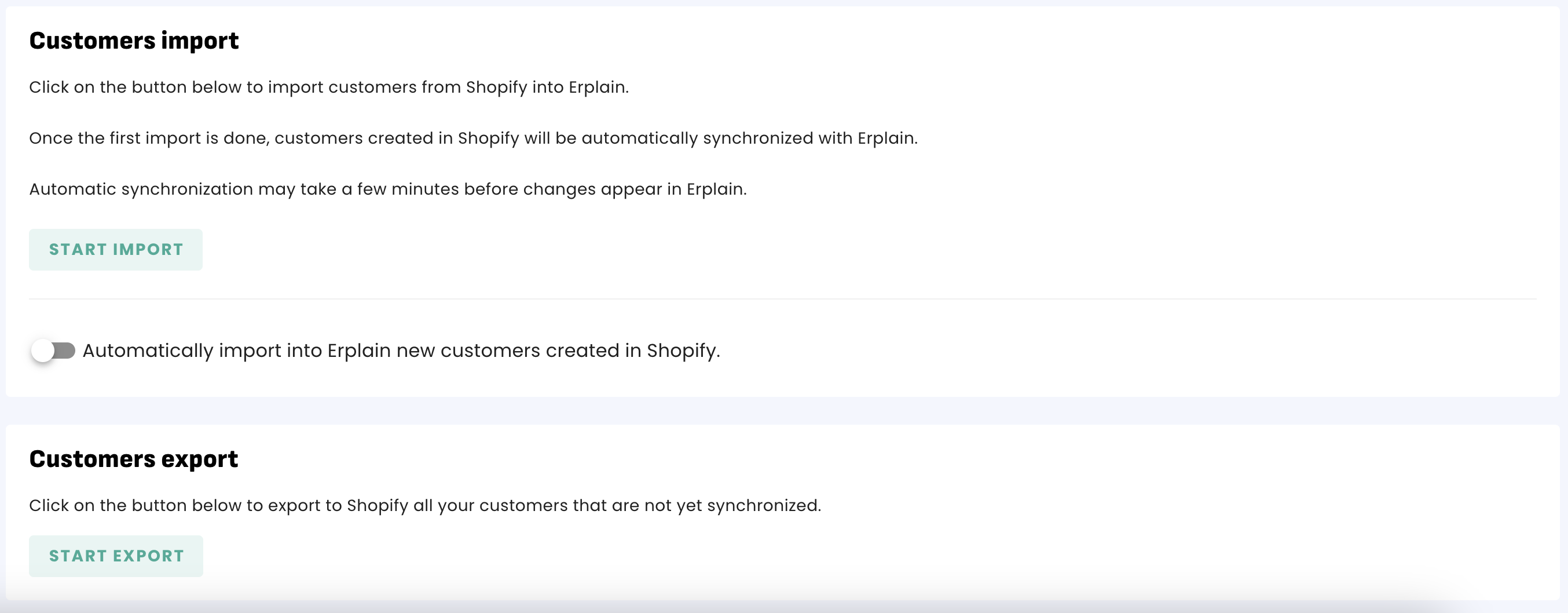
Note: Erplain uses the email address to match existing customers. If this is a new email address, Erplain will create a new customer.
5. Taxes
You can select a taxes that will be automatically selected for orders imported without a tax attached.

6. Connection
Disconnect
Click on Disconnect to stop the connection with Shopify. If you disconnect Shopify, your products and stock levels will remain the same (but not synced) on both systems.

7. Connecting Erplain to a new Shopify account - IMPORTANT
Disconnecting your Erplain account from Shopify to connect to a new Shopify account is not supported. We recommend that you either:
1.Open a new Erplain account for the new Shopify store or
2. Delete all the data in your account before connecting Erplain to a new Shopify store.
Once you connect Erplain to Shopify, your products are linked, your orders are linked and your customers are linked. We strongly advise against connecting your Erplain account to a second Shopify account.
Was this article helpful?
That’s Great!
Thank you for your feedback
Sorry! We couldn't be helpful
Thank you for your feedback
Feedback sent
We appreciate your effort and will try to fix the article
