Once logged into the B2B store, you can place orders by selecting products, clicking on the cart and proceeding to checkout.
Product search:
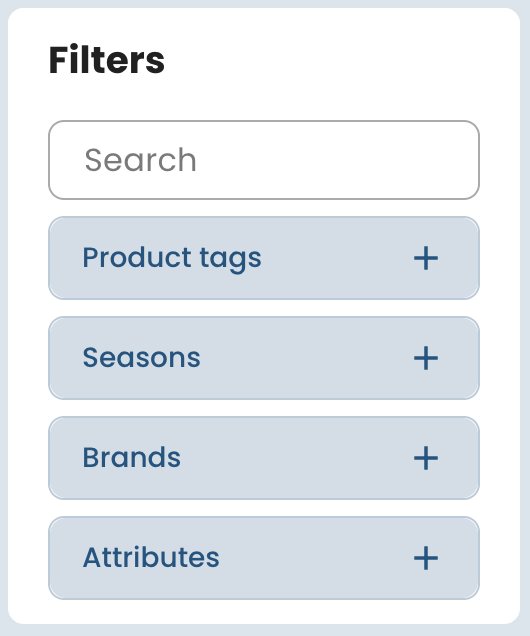
You can filter products by name, SKU or categories (Tags, Seasons and Brands):
Adding products to the order:
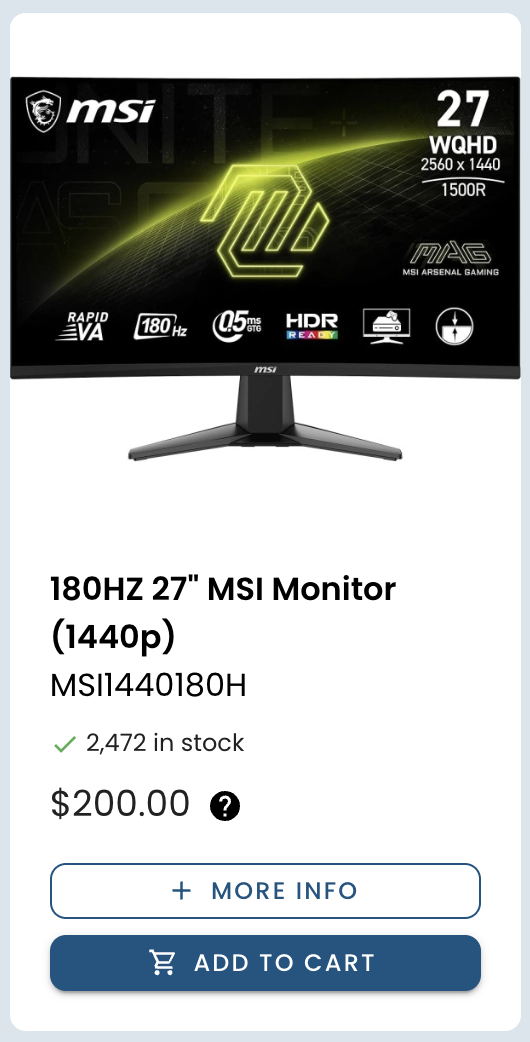
Click on "More info" to get further details on a product and click on "Add to cart" to add it to your order:
For products with variants, click on "Select variants" to choose the variants you wish to order:

Placing the order:
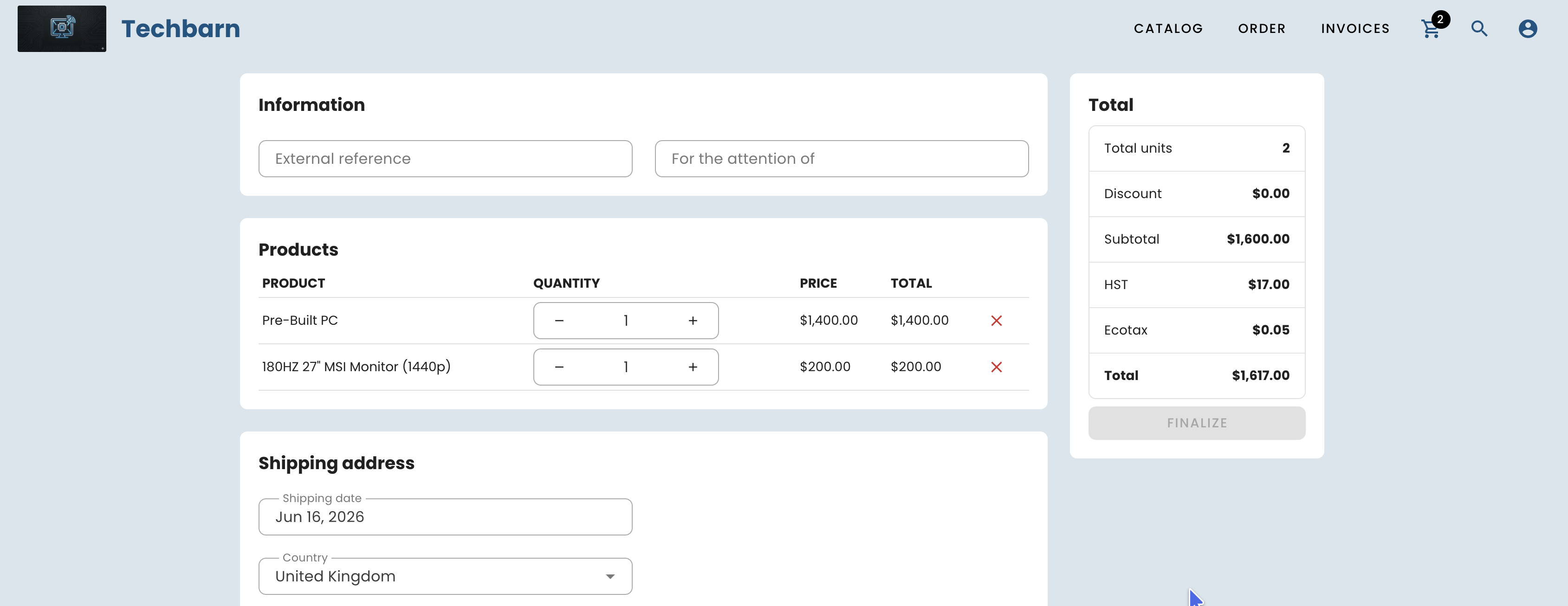
You can choose to add an external reference (typically used for a purchase order number) and an "Attention to" field to direct the order to a specific person within the company.
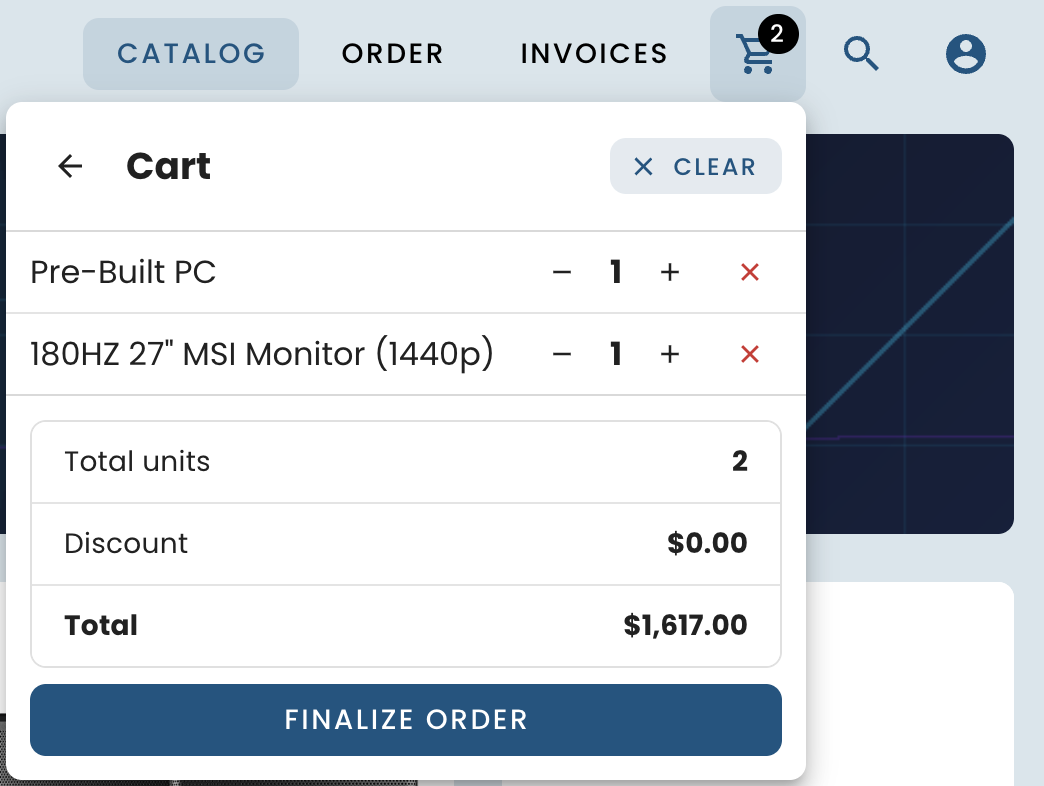
Once you are ready to place the order, click on the cart and "Finalize order":
Review the order, add any notes, select the delivery address and click on "Finalise order" to save the order.
Order validation:
Once finalised, the order is saved and its status changes to "pending validation". You will then be able to validate each order manually by opening them from Erplain.
You can also opt for automatic order validation. Each order will be validated without any action required on your part.
To choose an order validation method, please refer to the Order validation article.
Order invoicing:
Only a validated order can be converted into an invoice. The invoice can then be generated automatically or manually. If the invoice is generated automatically, it will be visible directly on the customer's store. Your customer will then be able to pay their invoice straight away via Stripe.
Choose the option that suits you best via the B2B Store settings. To modify this setting, please refer to this article.
Was this article helpful?
That’s Great!
Thank you for your feedback
Sorry! We couldn't be helpful
Thank you for your feedback
Feedback sent
We appreciate your effort and will try to fix the article