How to invite your customers?
You have two options to invite your customers: from the Employee Profile page or from the Customers menu in the B2B Store. Indeed, multiple employees from the same customer account can now have their own access to the B2B Store.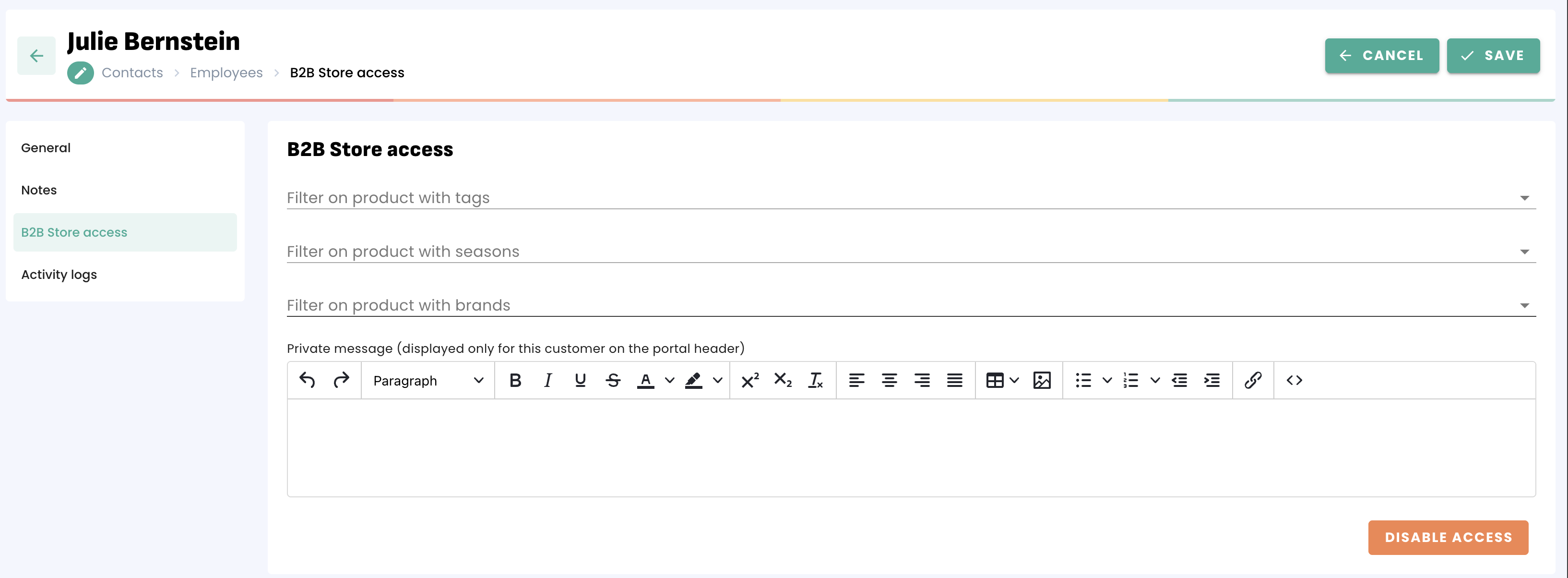
From the Employee Profile page, you will be able to enable or disable access to the B2B Store.
From the B2B Store menu, click on Customers then on the "Invite" button (top right) to invite one or several customers: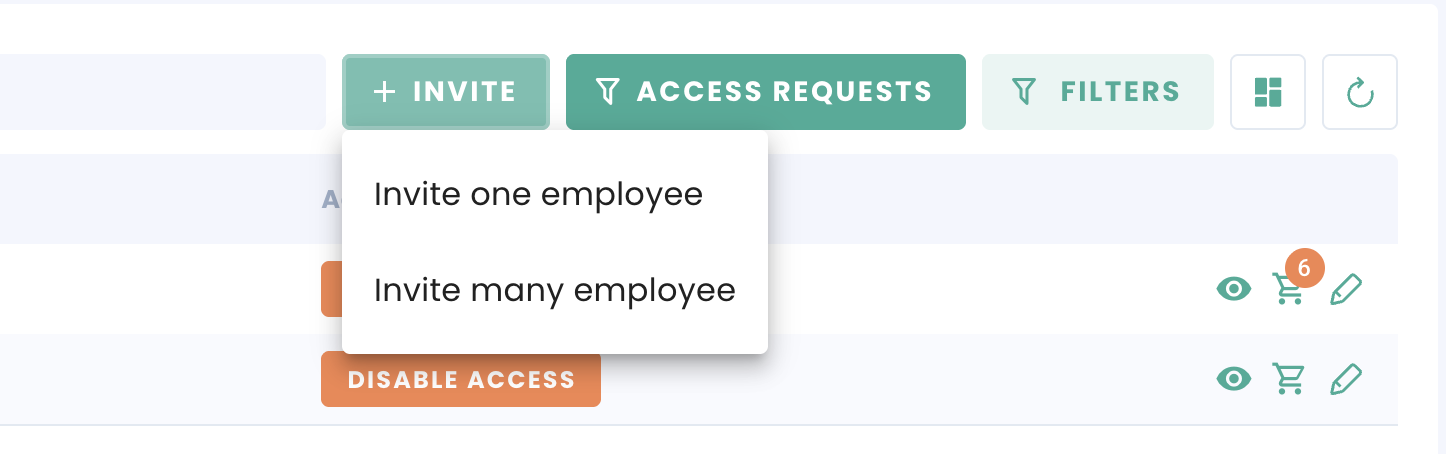
For a single addition, you can select (or confirm) your customer's email address and the categories (Tags, Seasons and Brands) of products they will see in your B2B store. You can also create an employee at this point if they do not already exist: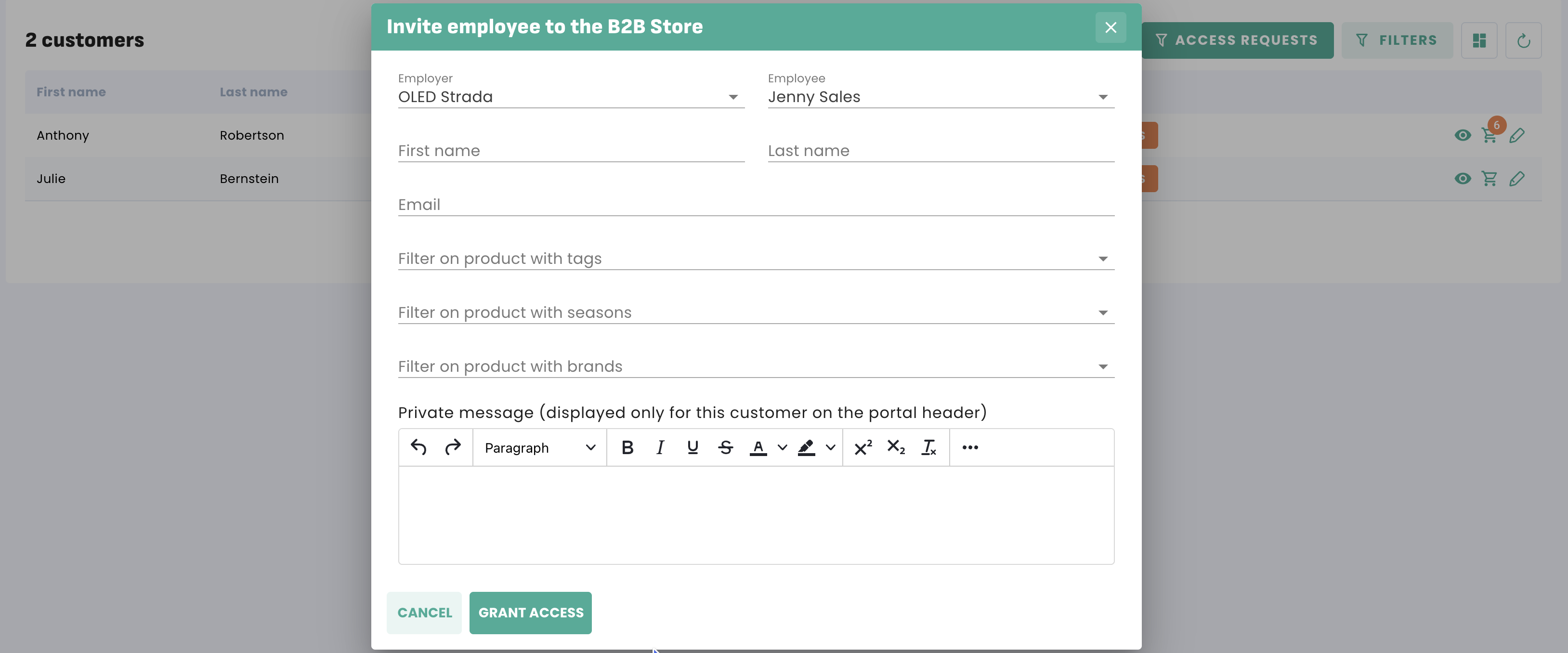
It is also possible to add a private message for this customer, which will be displayed in the header of the B2B Store (above the product list).
For multiple additions, you can also select the categories (Tags, Seasons and Brands) of products they will see in your B2B store. You can then select from the drop-down list the employees you wish to grant access to: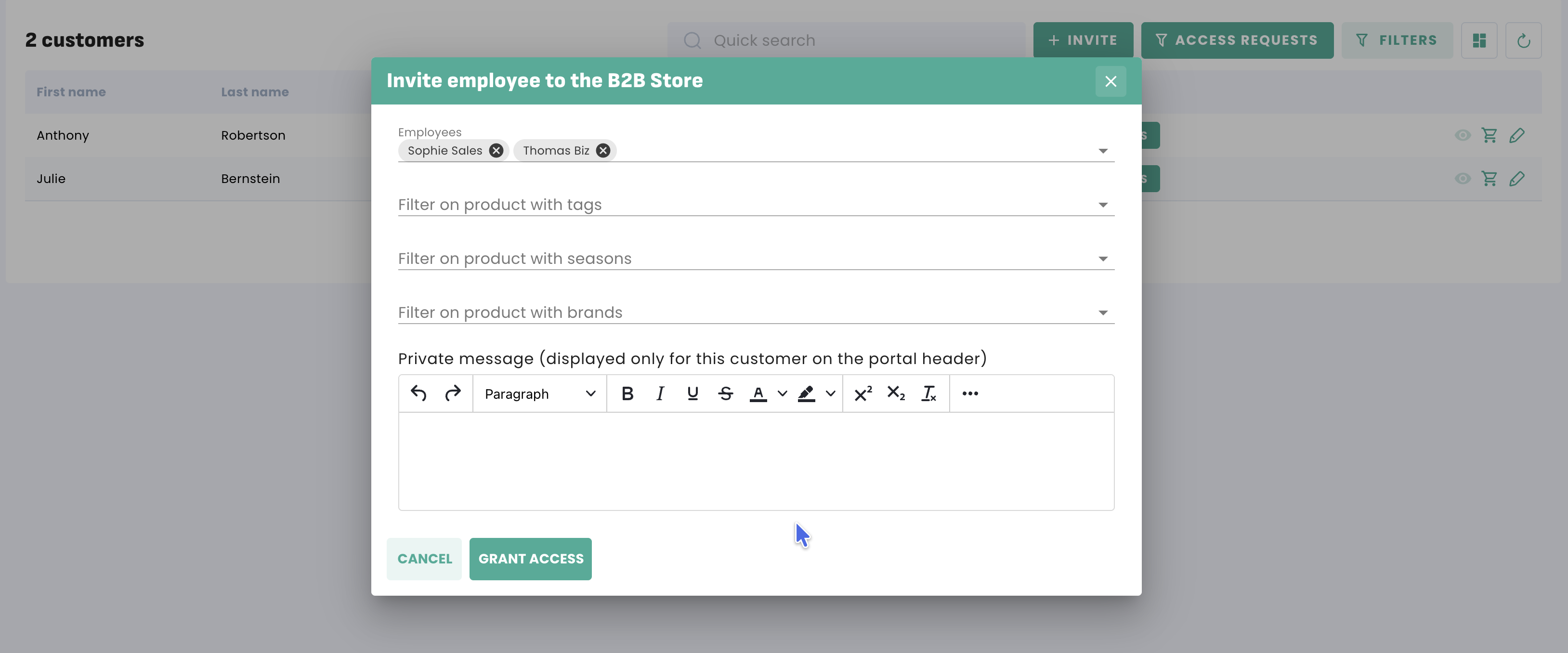
Once you have clicked the "Grant access" button, they will receive an email containing the login URL (link) and their password.
Please note that the language of the email will depend on the "PDF language" selected in the customer record (more information on the B2B Store language settings).
They can update their password later, once they have logged into the B2B Store (make sure they check their SPAM folder just in case).
You can find more details on activating and selecting products for the B2B Store on this page.
Price levels
Once your customer has access to the B2B Store, they will see their personalised selection including the products and prices corresponding to their price level. You can assign a price level to your customers directly from the customer profile:
If you have not selected a price level for your customer, the default price level from the B2B Store settings will be used.
Locations
If you have enabled the "Display stock" option in the B2B Store settings, your customer will see the available stock in the storage location assigned to them in their customer profile. If you have not selected a storage location for your customer, the default storage location from the B2B Store settings will be used.
Shipping costs
Once you receive an order from your customer, you can update the shipping costs directly in the sales order. You can also assign default shipping costs to a storage location in the Settings > Locations menu. These will be the default shipping costs added to orders assigned to that location.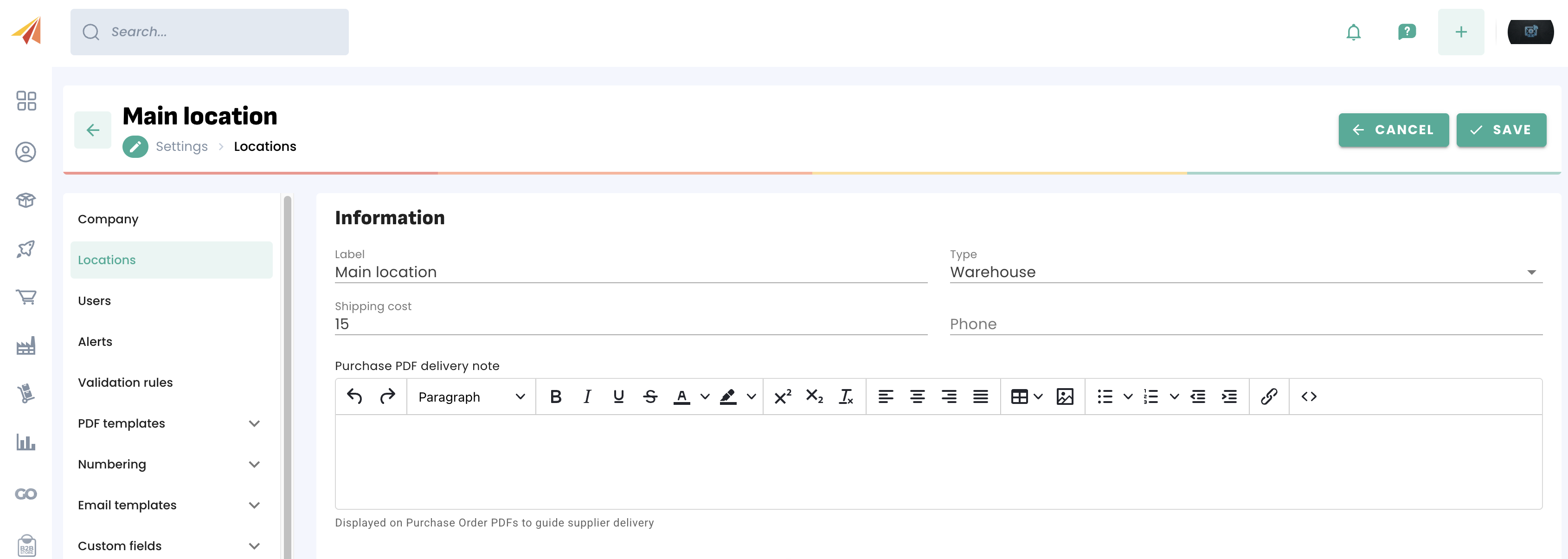
It is also possible to configure your B2B Store to automatically use the same shipping costs as the previous order for that customer. This can be done from the B2B Store > Settings > Setup menu.
Enabling access requests to your B2B Store
You can add an access request button to the login page. This can be used by customers or prospects to request access to your B2B Store. You will find more information on the "B2B Store access requests" page.
How to train your customers on the B2B Store?
Share this guide with your customers so they can use your B2B Store independently!
Was this article helpful?
That’s Great!
Thank you for your feedback
Sorry! We couldn't be helpful
Thank you for your feedback
Feedback sent
We appreciate your effort and will try to fix the article