To offer you the greatest possible flexibility, you have several ways to select the products available in your B2B Store.
1. Publishing products to the B2B Store
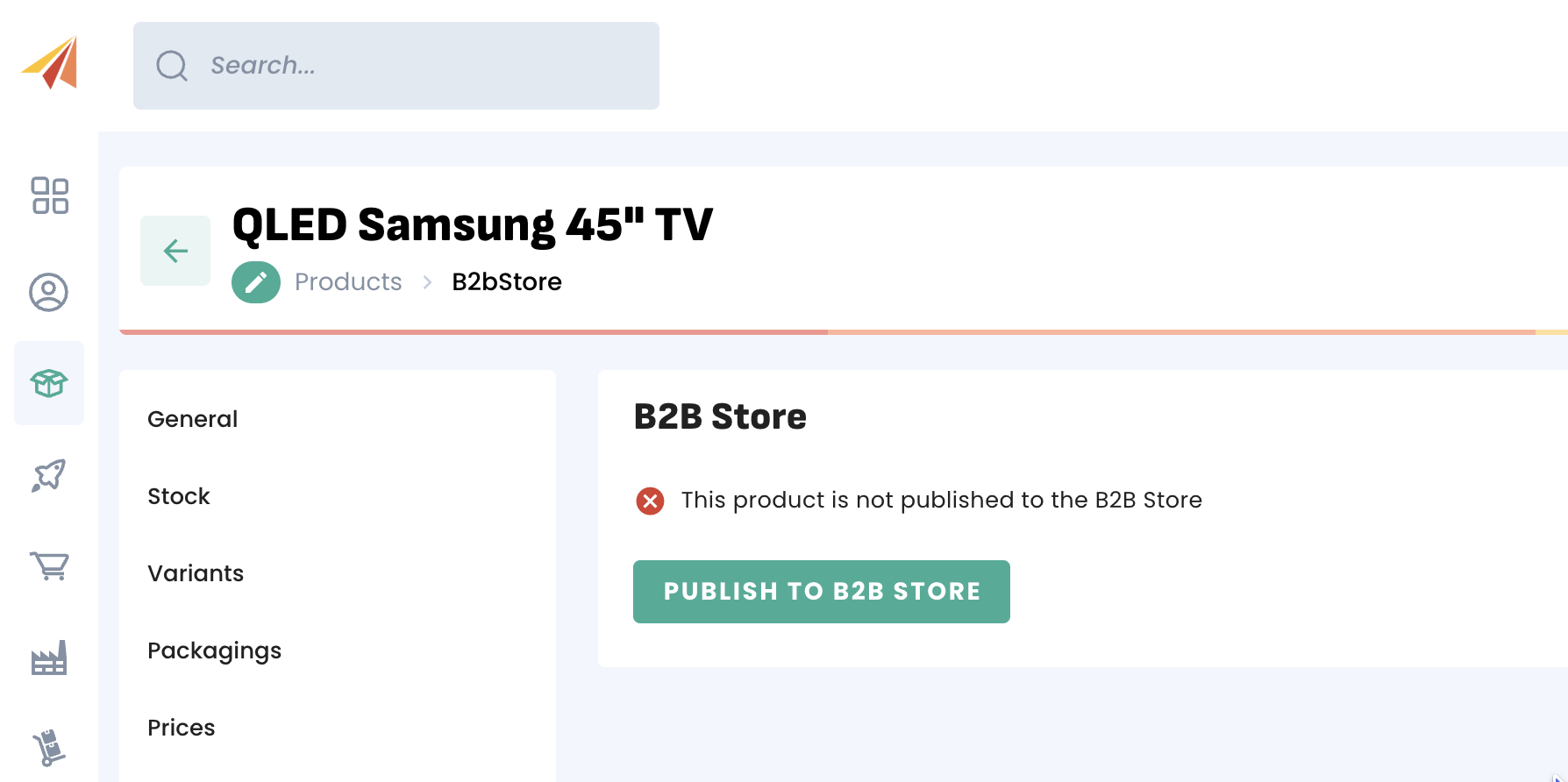
Before customising the product selection for each customer, you will need to push your products to your Store. Only products published to the B2B Store will be visible to your customers. To push products to the Store, you can open any product and click on "Publish to the B2B Store" in the corresponding section:
You can also push multiple products at once from your product list:
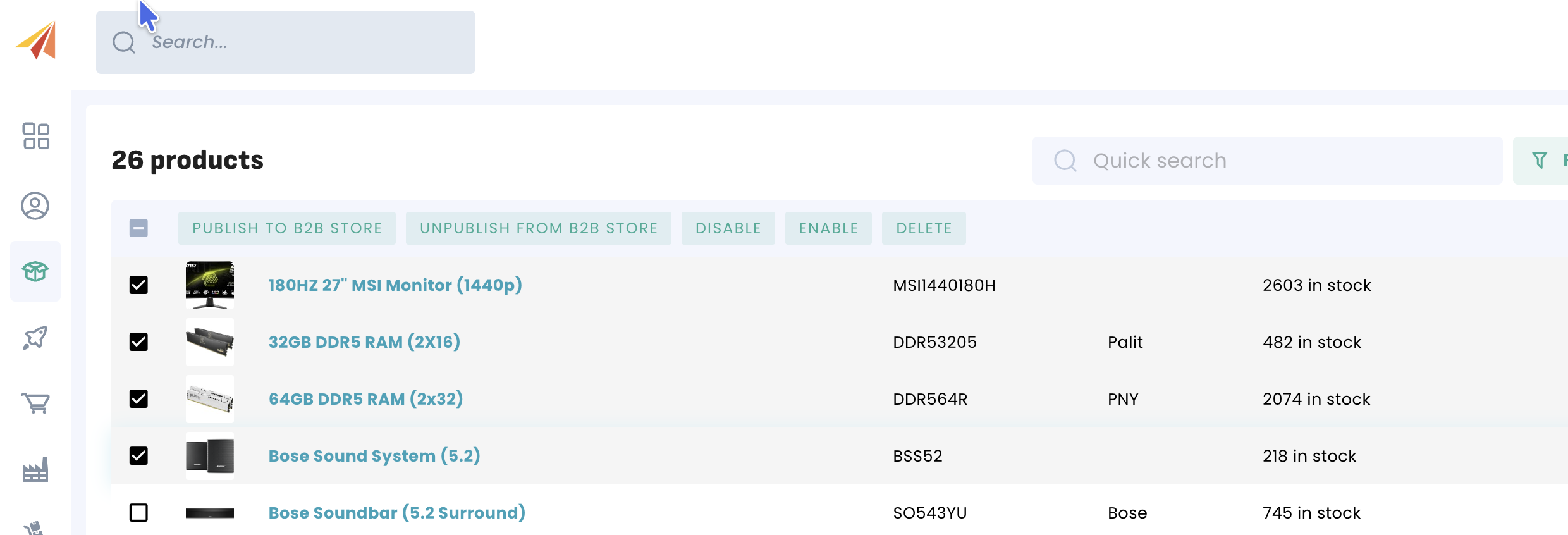
Select the products and click on "Select an operation", then on "Publish to the B2B Store". The same method applies to removing products from the Store — click on "Remove from Store".
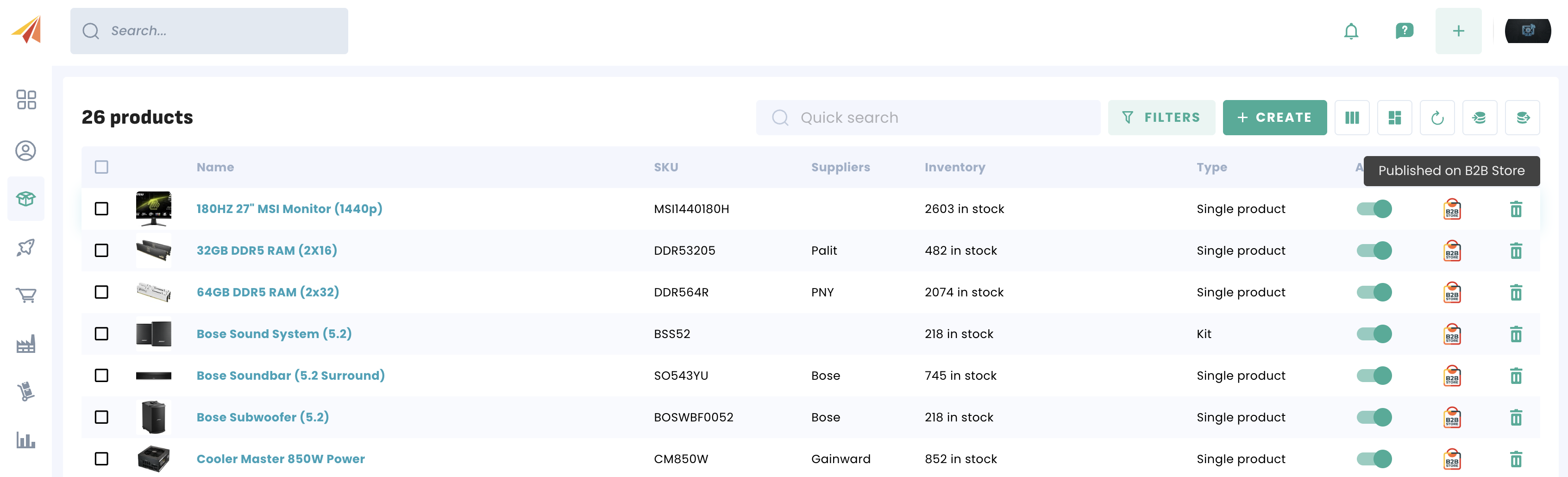
Products published to the Store will display the Store icon in the product list:
Once you have published products to the B2B Store, you can also select the categories (Tags, Seasons and Brands) of products that will be available. This gives you the ability to easily add or remove products based on these categories. This is done in the B2B Store settings:
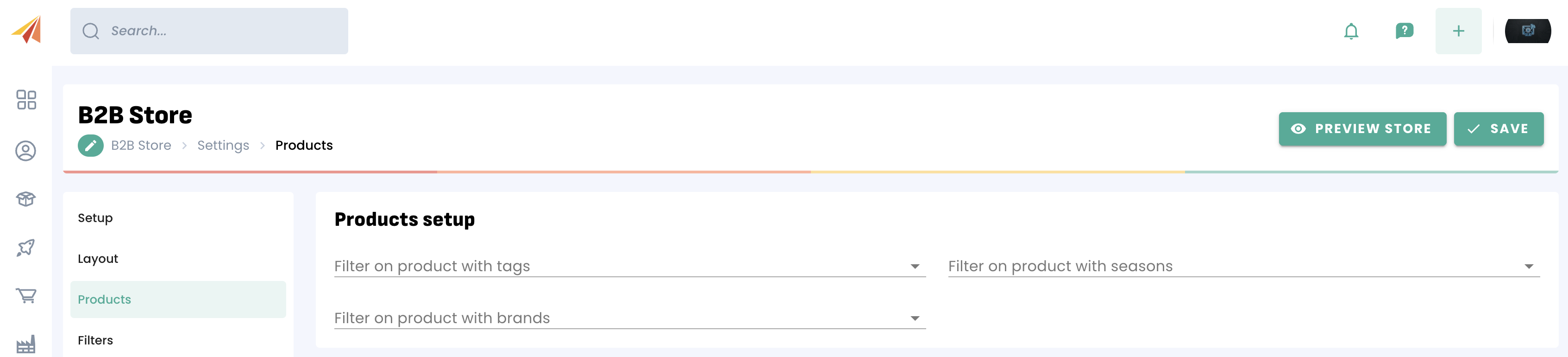
Unless you have selected different settings for your customer, this selection will be applied to all your customers.
2. Customise your product selection for each customer
You can also customise your product selection for each customer. This is done by selecting categories (Tags, Seasons and Brands), either when inviting a customer to the B2B Store, or by editing the customer's access from the Customers menu in the B2B Store menu.
Then select the categories:
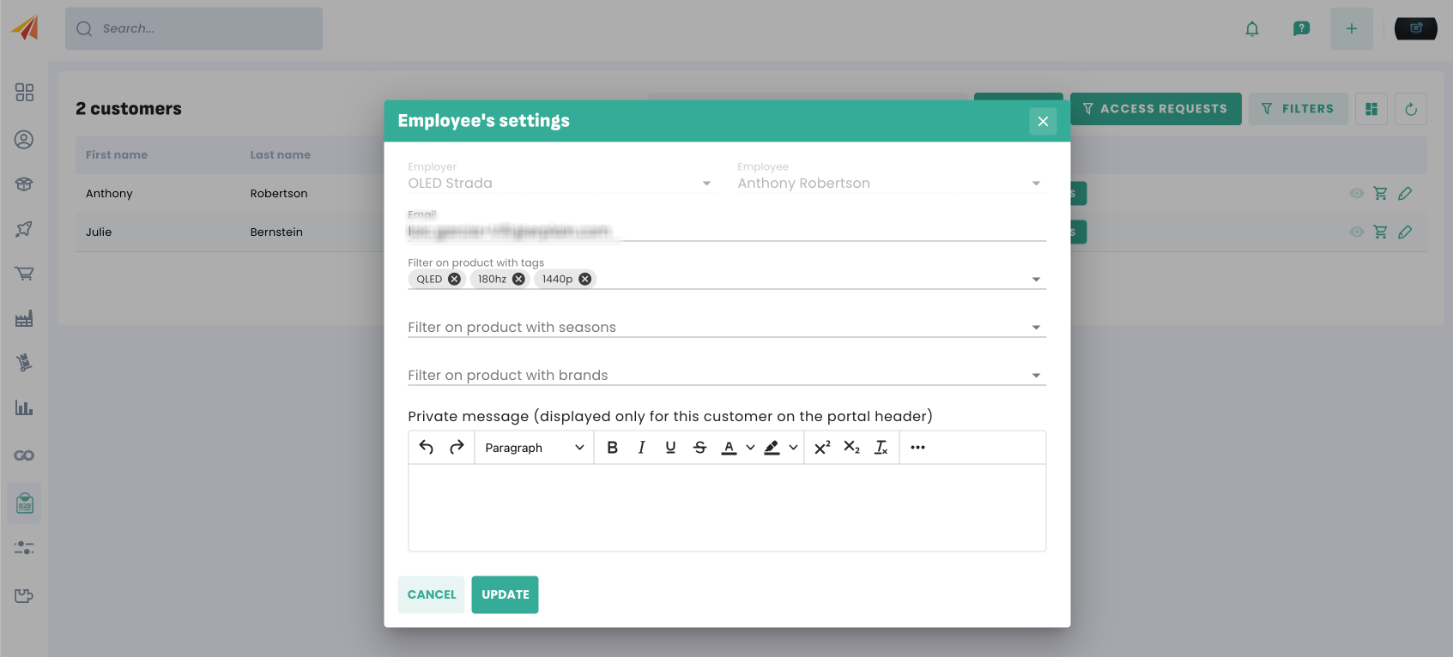
These settings will override the default B2B Store settings. Your customer settings take priority.
Was this article helpful?
That’s Great!
Thank you for your feedback
Sorry! We couldn't be helpful
Thank you for your feedback
Feedback sent
We appreciate your effort and will try to fix the article