This article guides you through setting up the connection between your Erplain account and your HubSpot portal, as well as managing permissions and disconnecting.
Connecting from Erplain for the first timeImportant — First-time connection: As this integration was recently released, HubSpot displays warning screens and requests additional security confirmations during the initial authorization. This behavior is completely normal for a new application. You can safely grant these permissions to complete the connection with your Erplain account.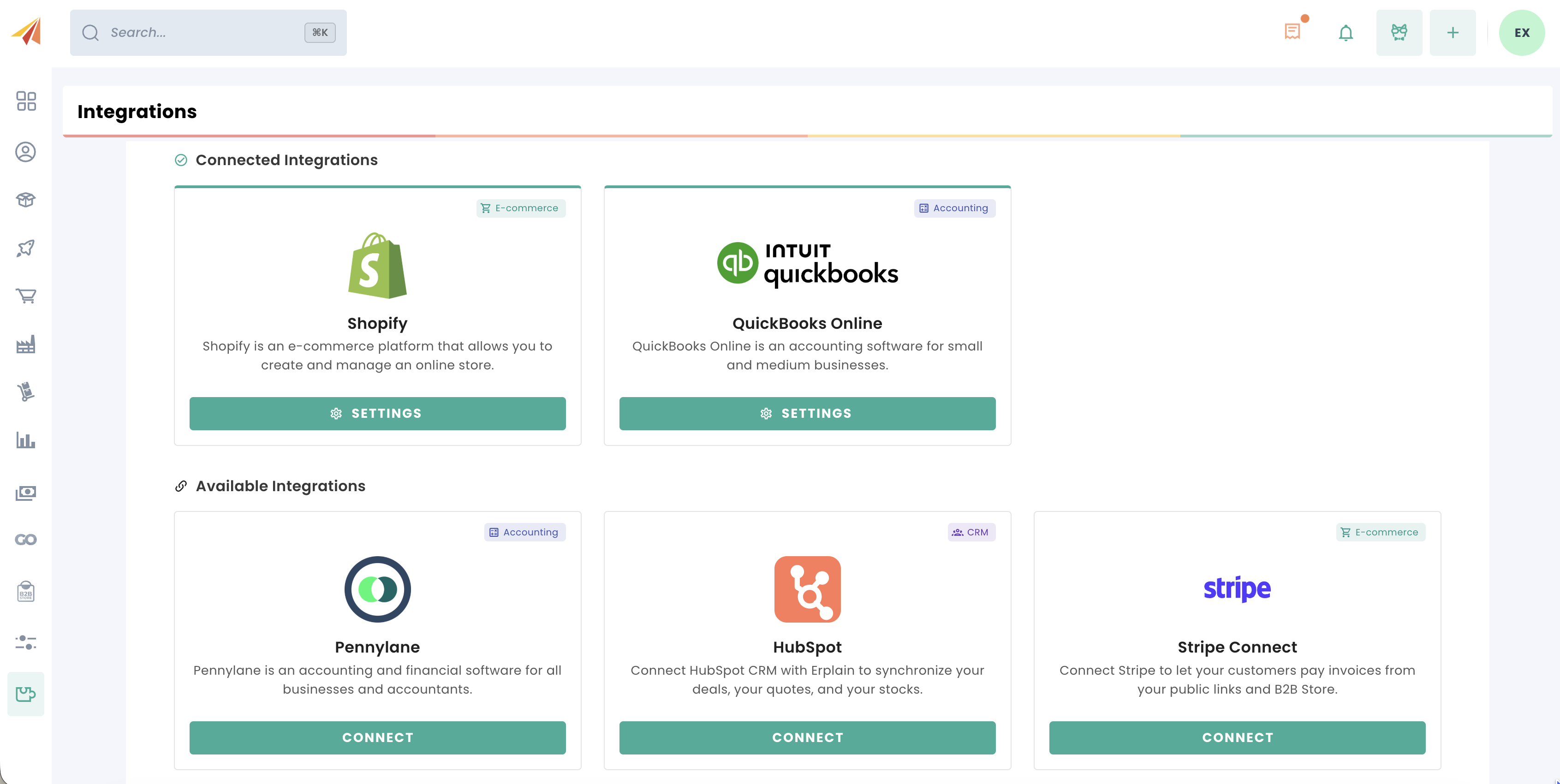
- In Erplain, go to the Integrations menu.
- On the HubSpot card, click Connect HubSpot to Erplain.
- A HubSpot window will open: select your portal and approve the requested permissions.
Once connected, the status changes to Connected. You can check the Last sync date and review any Sync errors directly on this page.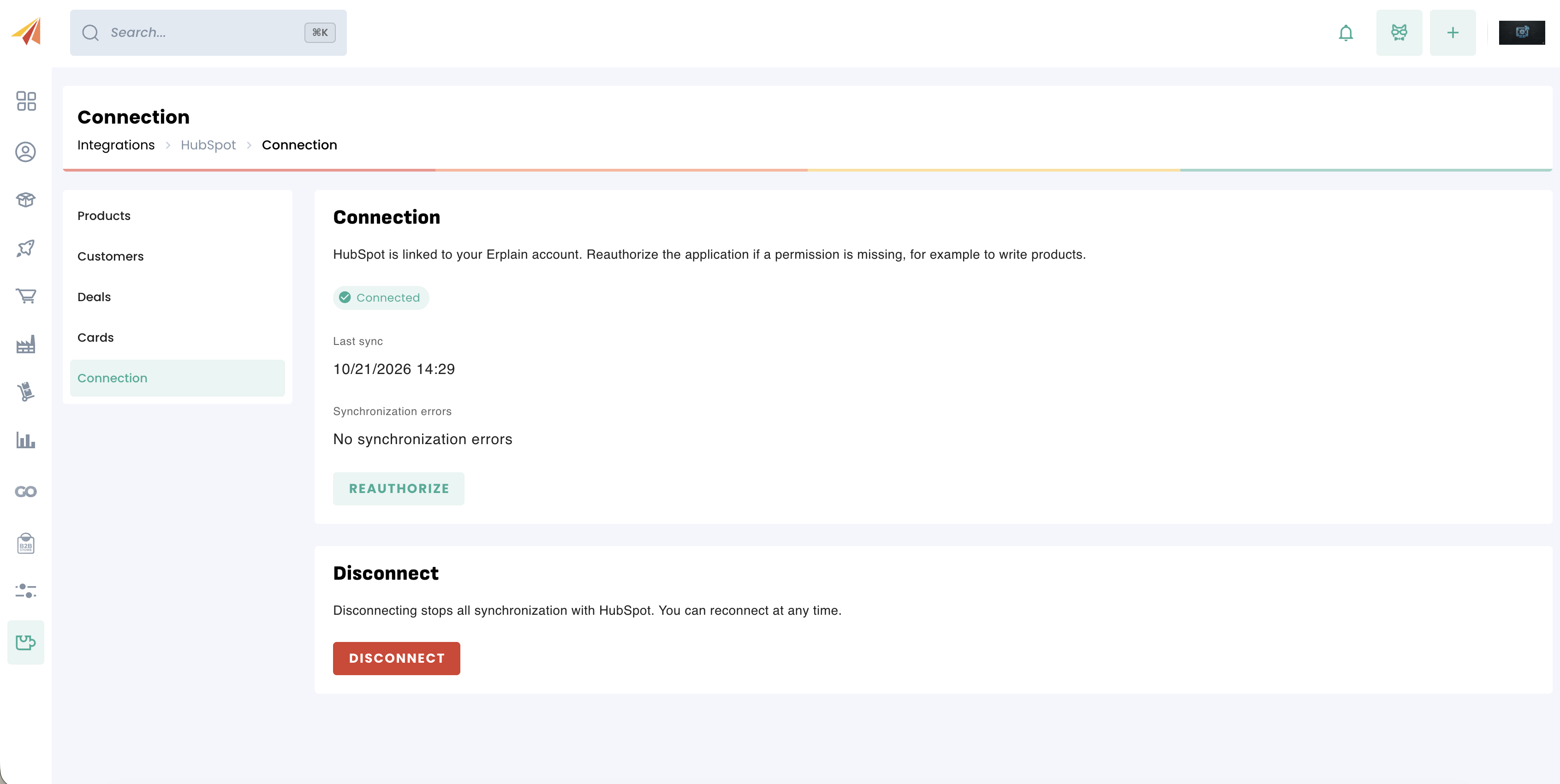
Reauthorizing the connection
If additional permissions are required (for instance, to allow writing products to HubSpot) or if the access token has expired:
- Go to Integrations > HubSpot > Connection.
- Click the Reauthorize button.
- Confirm permissions in HubSpot. Your existing settings and links are fully preserved.
Disconnecting HubSpot
If you want to disconnect the integration:
- From Erplain: Go to Integrations > HubSpot > Connection and click Disconnect.
- From HubSpot: You can uninstall the Erplain app from your connected apps settings.
Impact on your data: Disconnecting immediately stops synchronization. Products, customers, and documents already created in Erplain remain intact and are never deleted.
Was this article helpful?
That’s Great!
Thank you for your feedback
Sorry! We couldn't be helpful
Thank you for your feedback
Feedback sent
We appreciate your effort and will try to fix the article